> ## Documentation Index
> Fetch the complete documentation index at: https://docs.acadine.ai/llms.txt
> Use this file to discover all available pages before exploring further.
# Configure Syllabus and Weightage
> Configure syllabus coverage and weightage distribution for your question papers
## Overview
Configure which chapters, topics, and subtopics should be covered in your question paper, along with their weightage distribution. This helps AI understand your requirements and generate questions that align with your curriculum coverage needs.
This step is **optional** if you're using Build with AI mode. However, configuring it helps AI provide better suggestions.
***
## Two Ways to Configure
You can configure syllabus and weightage in two ways:
1. **Manual Configuration** - Choose your subject and manually select chapters, topics, and subtopics
2. **Import from Previous Question Paper** - Reuse configuration from a past question paper and edit if needed
***
## Method 1: Manual Configuration
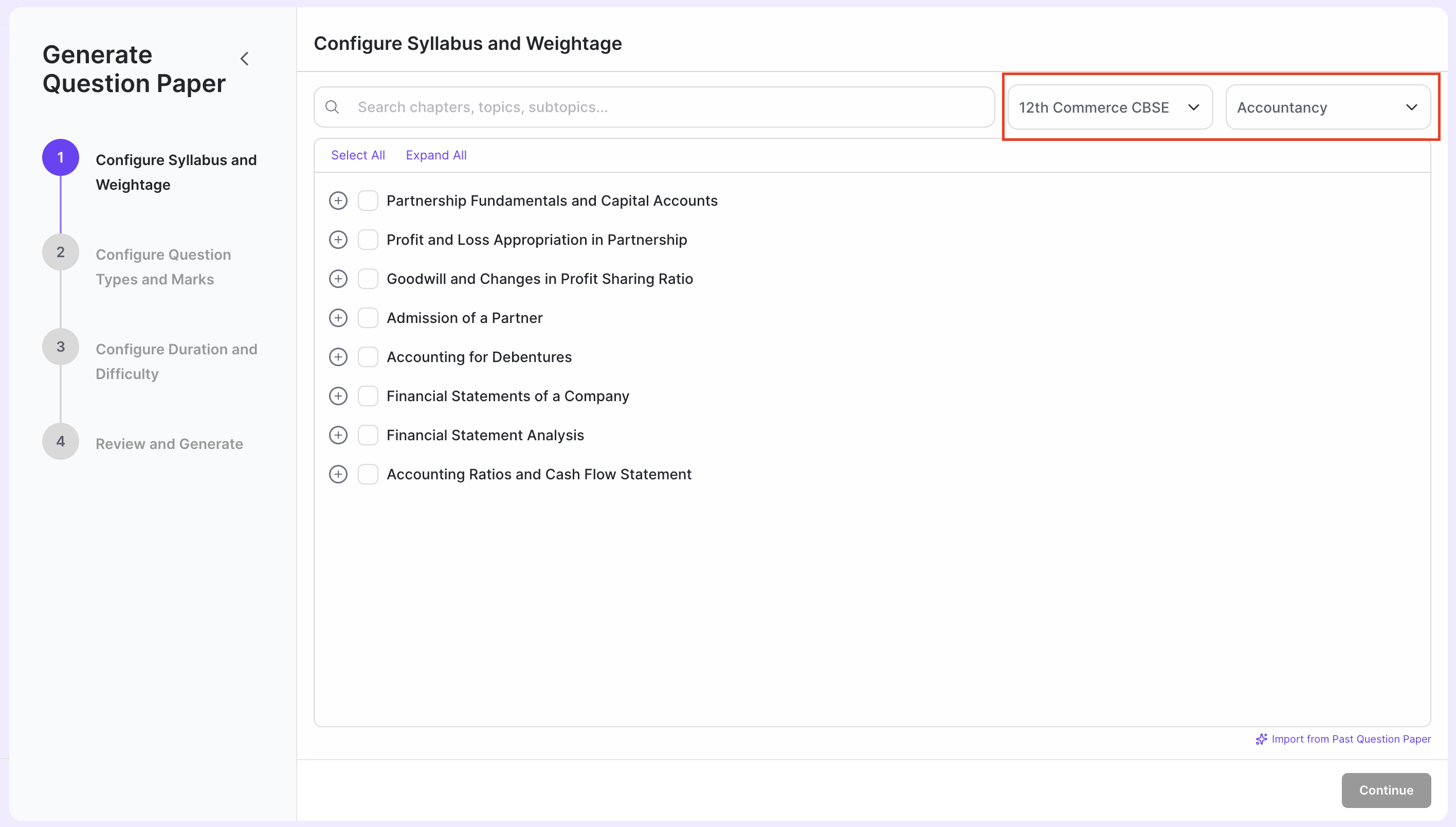
### Step 1: Choose Course and Subject
Select your course and subject from the dropdown menus at the top of the screen.
 ### Step 2: Select Chapters, Topics, and Subtopics
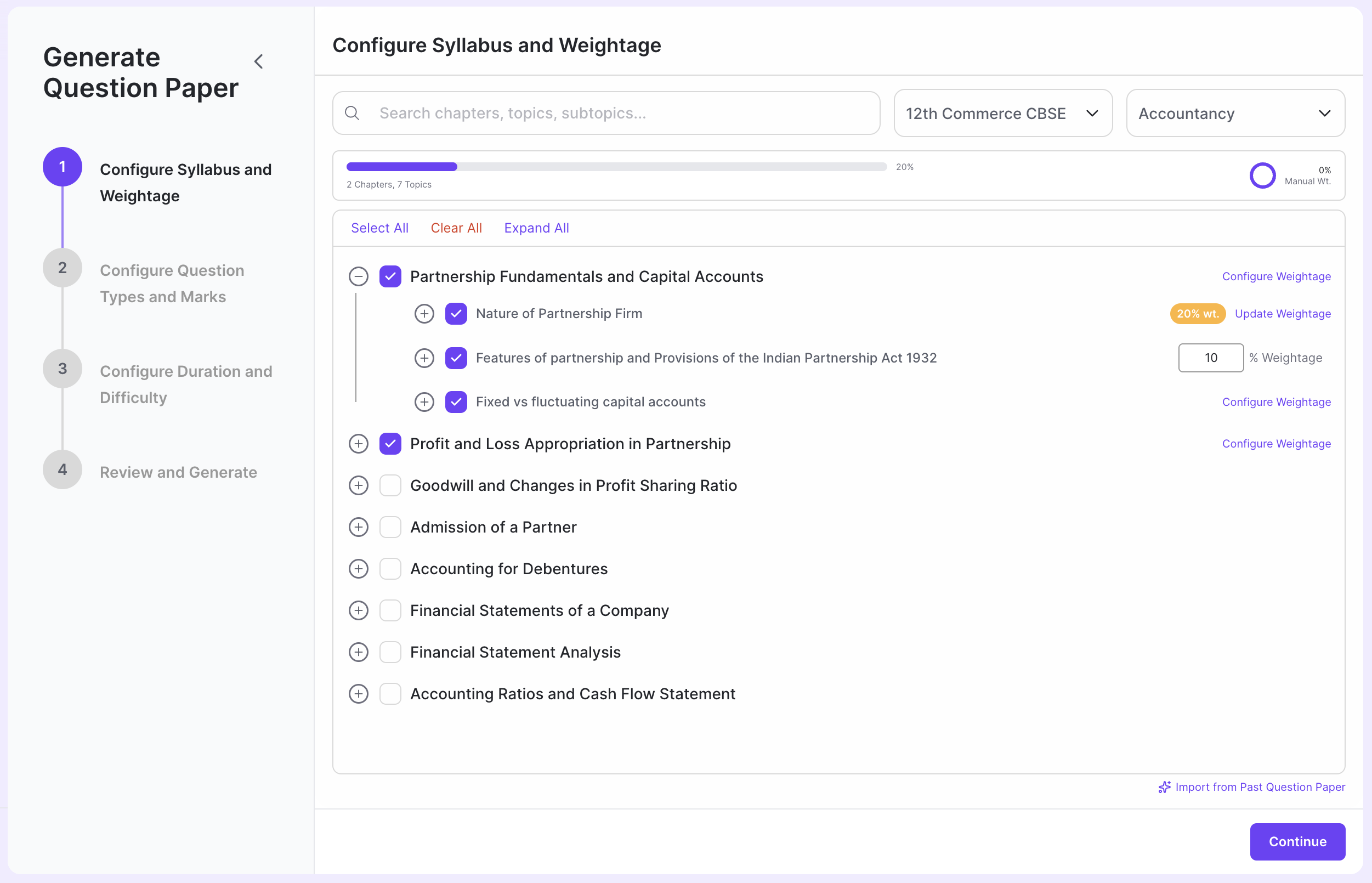
Browse through the syllabus hierarchy and select the chapters, topics, or subtopics you want to include in your question paper.
* **Chapters**: Click on a chapter checkbox to select it
* **Topics**: Expand chapters to view and select specific topics
* **Subtopics**: Expand topics further to select individual subtopics
Use the following options for bulk selection:
* **Select All**: Quickly select all available items
* **Expand All**: Expand all chapters and topics to view the complete hierarchy
* **Clear All**: Deselect all selected items
### Step 2: Select Chapters, Topics, and Subtopics
Browse through the syllabus hierarchy and select the chapters, topics, or subtopics you want to include in your question paper.
* **Chapters**: Click on a chapter checkbox to select it
* **Topics**: Expand chapters to view and select specific topics
* **Subtopics**: Expand topics further to select individual subtopics
Use the following options for bulk selection:
* **Select All**: Quickly select all available items
* **Expand All**: Expand all chapters and topics to view the complete hierarchy
* **Clear All**: Deselect all selected items
 ### Step 3: Configure Weightage (Optional)
Weightage configuration is **completely optional**. You can choose to:
* **Configure weightage for all**: Click "Configure Weightage" next to each chapter or topic to set specific percentages
* **Configure weightage partially**: Set weightage only for some chapters/topics
* **Skip weightage configuration**: Let AI decide the optimal weightage distribution
For items where you don't configure weightage, AI will automatically determine appropriate weightage based on the syllabus structure and question distribution.
When configuring weightage:
1. Click the **"Configure Weightage"** button next to a chapter or topic
2. Enter the desired percentage (e.g., 20%, 15%, etc.)
3. The progress bar at the top shows your total weightage allocation
**Flexible Weightage**: You don't need to make weightages add up to 100%. AI will adjust and balance the distribution intelligently.
***
## Method 2: Import from Previous Question Paper
### Step 1: Click Import Button
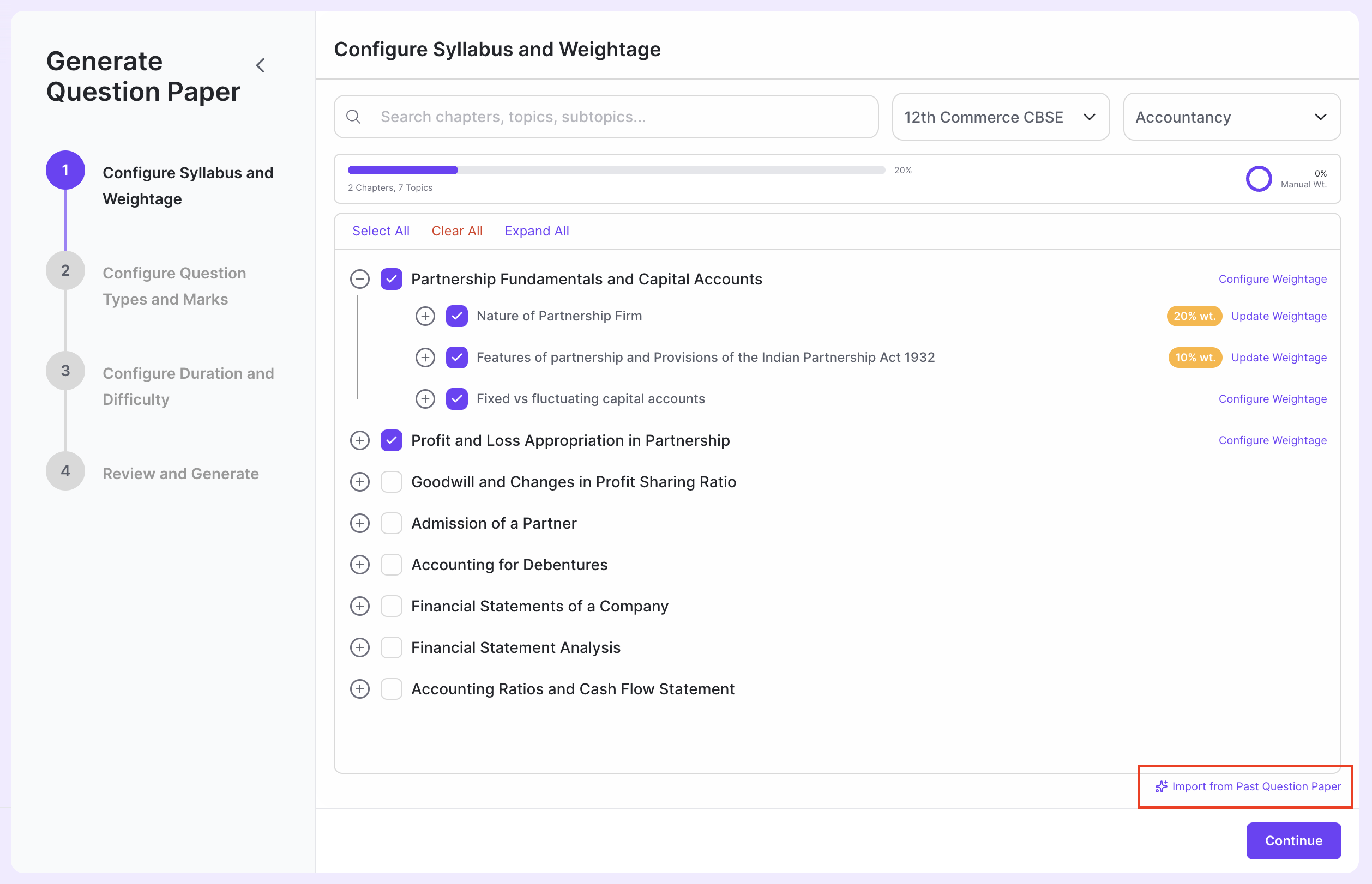
Click the **"Import from Past Question Paper"** button located at the bottom right of the screen.
### Step 3: Configure Weightage (Optional)
Weightage configuration is **completely optional**. You can choose to:
* **Configure weightage for all**: Click "Configure Weightage" next to each chapter or topic to set specific percentages
* **Configure weightage partially**: Set weightage only for some chapters/topics
* **Skip weightage configuration**: Let AI decide the optimal weightage distribution
For items where you don't configure weightage, AI will automatically determine appropriate weightage based on the syllabus structure and question distribution.
When configuring weightage:
1. Click the **"Configure Weightage"** button next to a chapter or topic
2. Enter the desired percentage (e.g., 20%, 15%, etc.)
3. The progress bar at the top shows your total weightage allocation
**Flexible Weightage**: You don't need to make weightages add up to 100%. AI will adjust and balance the distribution intelligently.
***
## Method 2: Import from Previous Question Paper
### Step 1: Click Import Button
Click the **"Import from Past Question Paper"** button located at the bottom right of the screen.
 ### Step 2: Select Question Paper
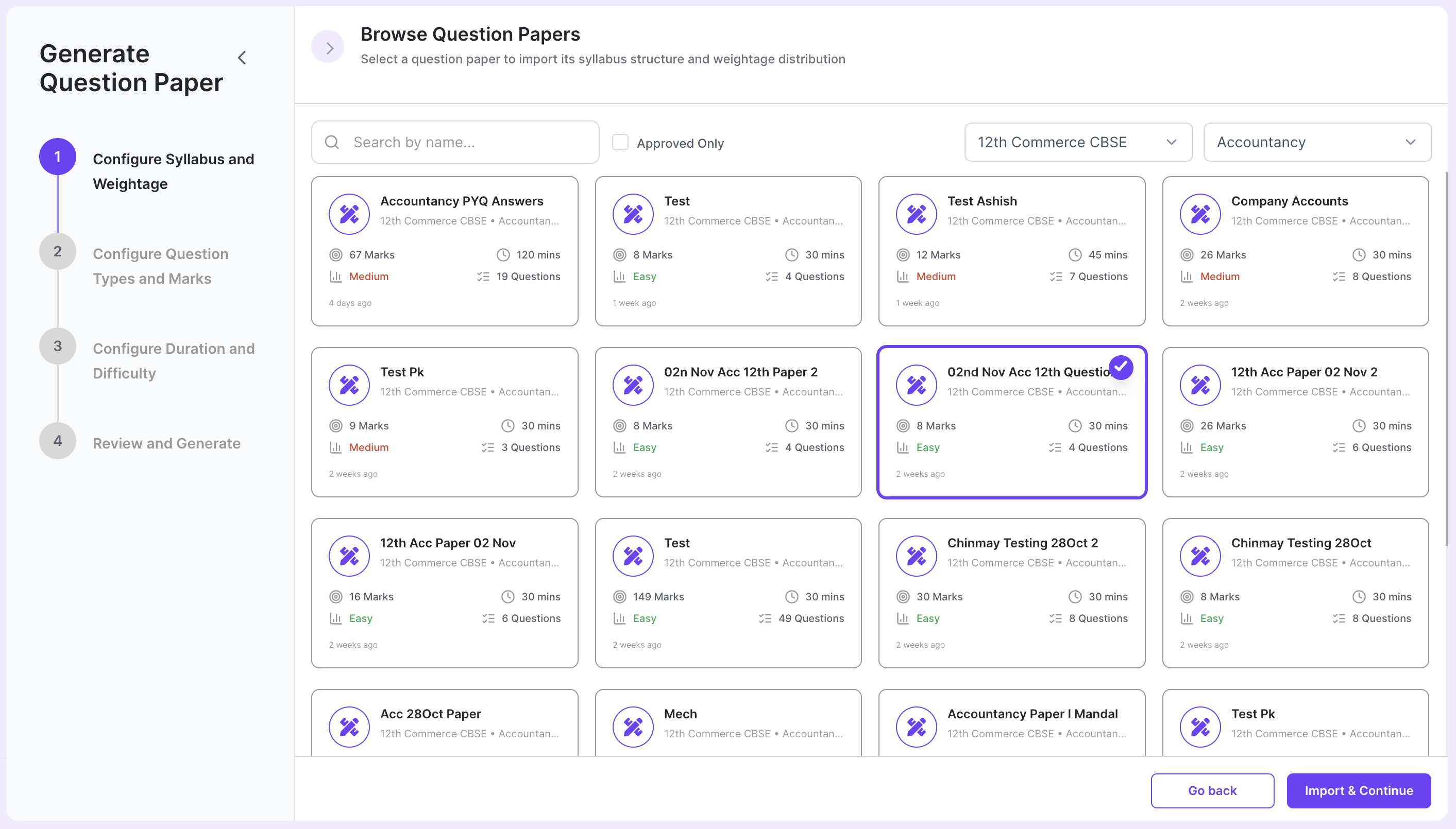
Choose a previously created question paper from the list. After selecting, click the **"Import & Continue"** button to import the syllabus configuration and weightage from that paper.
### Step 2: Select Question Paper
Choose a previously created question paper from the list. After selecting, click the **"Import & Continue"** button to import the syllabus configuration and weightage from that paper.
 ### Step 3: Edit if Needed
Once imported, you can edit the configuration just like in manual mode:
* Add or remove chapters, topics, or subtopics
* Adjust weightage percentages
* Change course or subject if needed
**Save Time**: This method is perfect when creating similar question papers for different batches or time periods.
***
## What's Next?
After configuring syllabus and weightage, click **"Continue"** to proceed to the next step where you'll configure question types and marks distribution.
Set up question types, subtypes, and marks distribution
***
## Need Help?
Have questions or need assistance? Reach out to us at [support@acadine.ai](mailto:support@acadine.ai).
### Step 3: Edit if Needed
Once imported, you can edit the configuration just like in manual mode:
* Add or remove chapters, topics, or subtopics
* Adjust weightage percentages
* Change course or subject if needed
**Save Time**: This method is perfect when creating similar question papers for different batches or time periods.
***
## What's Next?
After configuring syllabus and weightage, click **"Continue"** to proceed to the next step where you'll configure question types and marks distribution.
Set up question types, subtypes, and marks distribution
***
## Need Help?
Have questions or need assistance? Reach out to us at [support@acadine.ai](mailto:support@acadine.ai).