> ## Documentation Index
> Fetch the complete documentation index at: https://docs.acadine.ai/llms.txt
> Use this file to discover all available pages before exploring further.
# Generate Question Paper
> Create AI-powered question papers in minutes with Auto Generate or Build with AI modes
## Introduction
Generate comprehensive question papers in minutes using Acadine's AI-powered tools. Choose between two generation modes based on your needs - get a complete paper instantly or build it step-by-step with AI assistance.
**Permission Required:** Only teachers and admins can generate question papers.
## Generation Modes
Acadine offers two ways to create question papers:
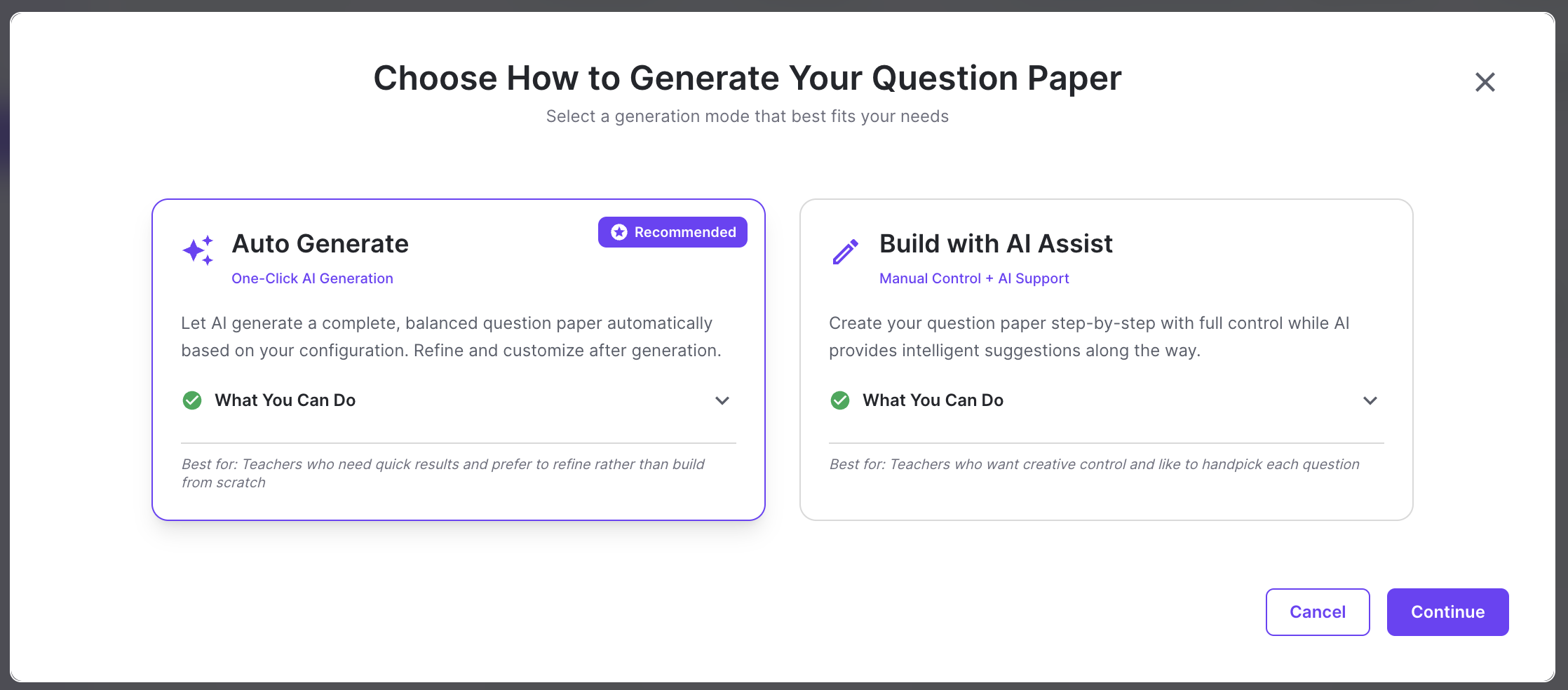
* **Auto Generate:** AI creates a complete, balanced question paper automatically based on your configuration. Perfect for quick test creation.
* **Build with AI:** Create your paper step-by-step with full control while AI provides intelligent suggestions. Ideal when you want to handpick each question.
Both modes allow full editing capabilities after generation.
***
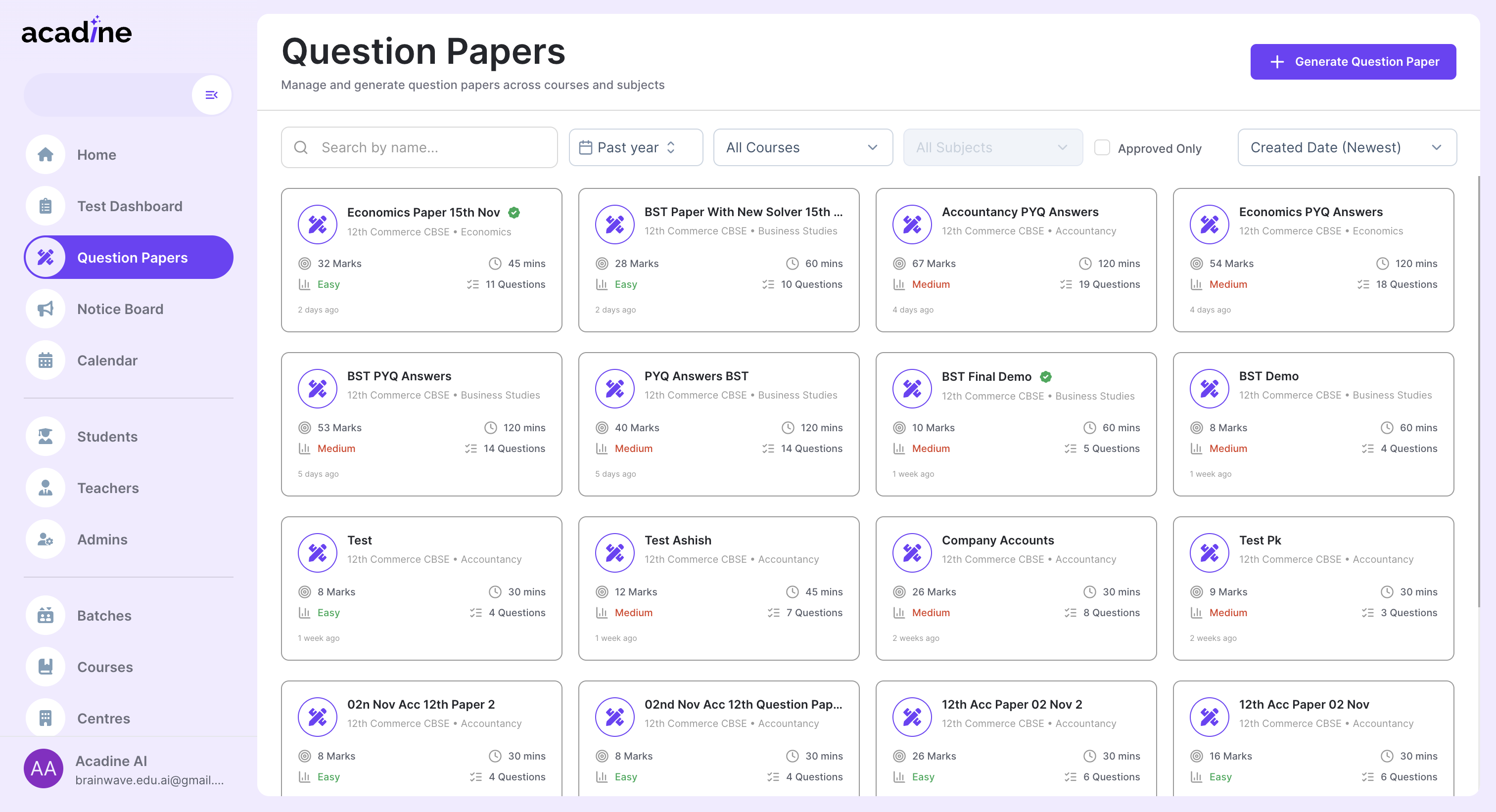
## Step 1: Go to Question Papers Screen
Navigate to the Question Papers section from your dashboard.
You can also directly visit **acadine.ai/question-papers** to access question papers.
***
## Step 2: Click Generate Question Paper Button
Click the **Generate Question Paper** button from the header to start creating a new question paper.
***
## Step 3: Choose Your Generation Mode
Select the generation mode that best fits your needs:
**One-Click AI Generation**
Let AI generate a complete, balanced question paper automatically based on your configuration. Review and refine after generation.
**Best for:** Teachers who need quick results and prefer to refine rather than build from scratch.
**Manual Control + AI Support**
Create your question paper step-by-step with full control. AI provides intelligent suggestions as you build.
**Best for:** Teachers who want creative control and like to handpick each question.
***
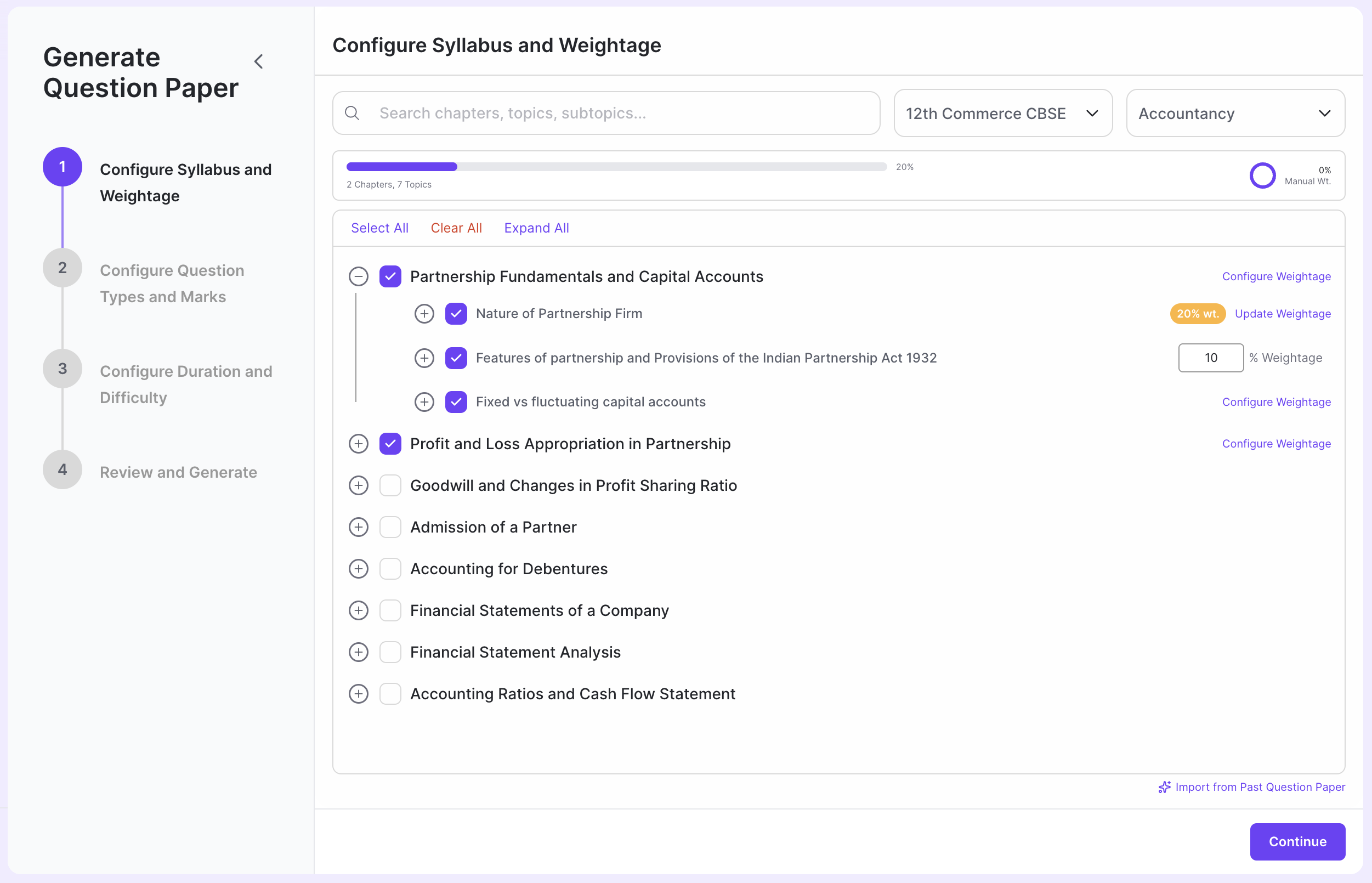
## Step 4: Configure Syllabus & Weightage
Define which chapters and topics should be covered in your question paper and their weightage distribution.
**Optional for Build with AI Mode:** This configuration is optional if you choose Build with AI mode, but it helps AI provide better suggestions.
For detailed instructions on syllabus configuration, see:
Learn how to set up syllabus coverage and weightage distribution
***
## Step 5: Configure Question Types & Marks
Set up the types of questions (MCQ, Short Answer, Long Answer, Numerical, etc.) and their marks distribution.
For detailed instructions on question type configuration, see:
Learn how to configure question types, subtypes, and marks distribution
***
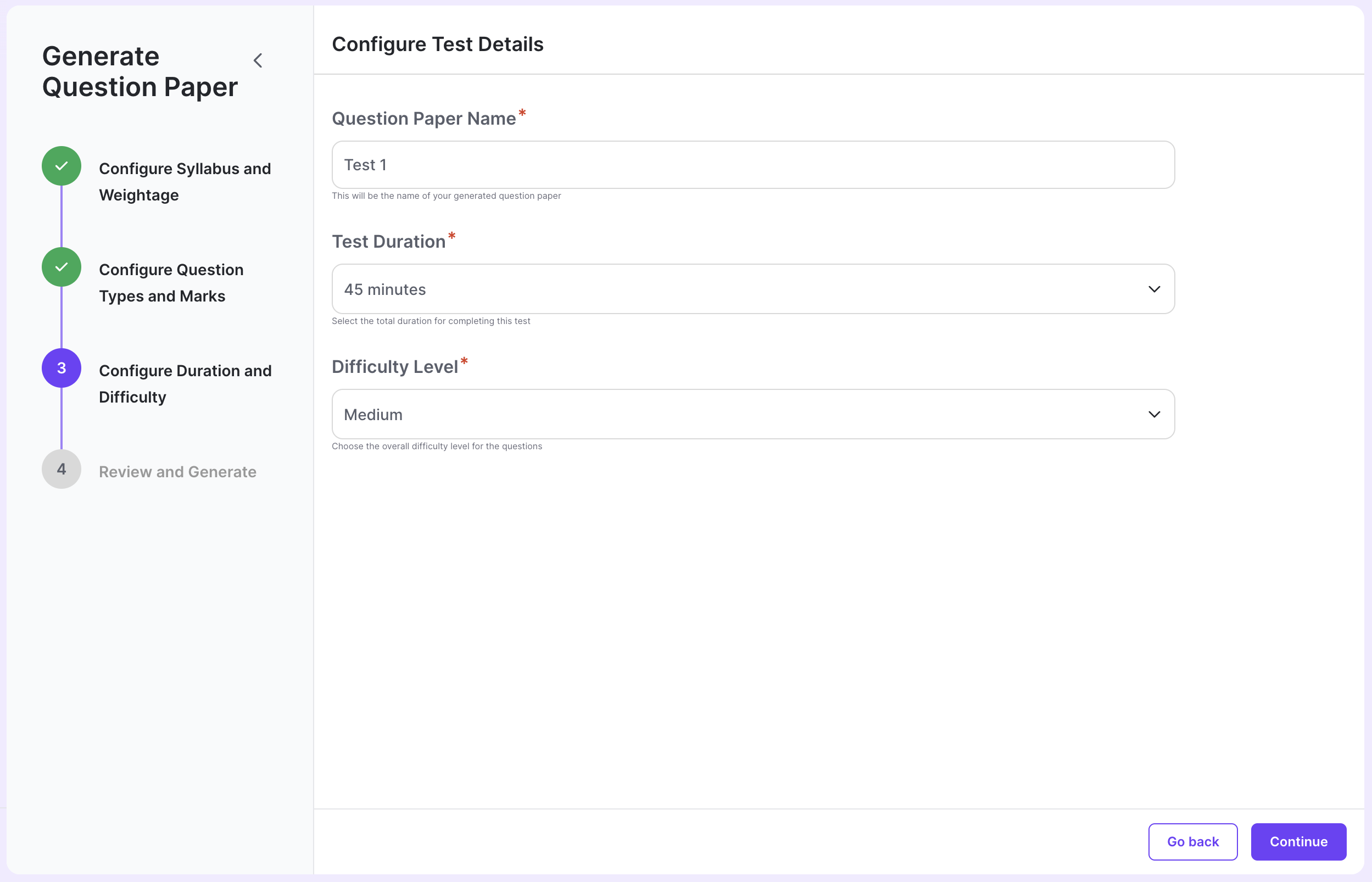
## Step 6: Configure Difficulty Level and Duration
Set the difficulty level for your question paper and specify the test duration.
***
## Step 7: Review Configuration & Generate
Review your configuration settings and click the generate button to create your question paper.
**Different Experiences:**
* **Auto Generate Mode:** You'll see real-time updates as AI creates your complete question paper automatically.
* **Build with AI Mode:** You'll get a clean editor to build your question paper from scratch with AI suggestions.
***
## What's Next?
Once your question paper is generated, you can customize it further using these features:
Modify question text, options, or answers
Swap questions from the question bank
Insert custom questions
Organize with new sections
Change question sequence
Preview the question paper
Download for printing
Collaborate with notes
Lock and approve for scheduling
***
## Need Help?
Have questions or need assistance? Reach out to us at [support@acadine.ai](mailto:support@acadine.ai).
 ***
## Step 4: Configure Syllabus & Weightage
Define which chapters and topics should be covered in your question paper and their weightage distribution.
***
## Step 4: Configure Syllabus & Weightage
Define which chapters and topics should be covered in your question paper and their weightage distribution.
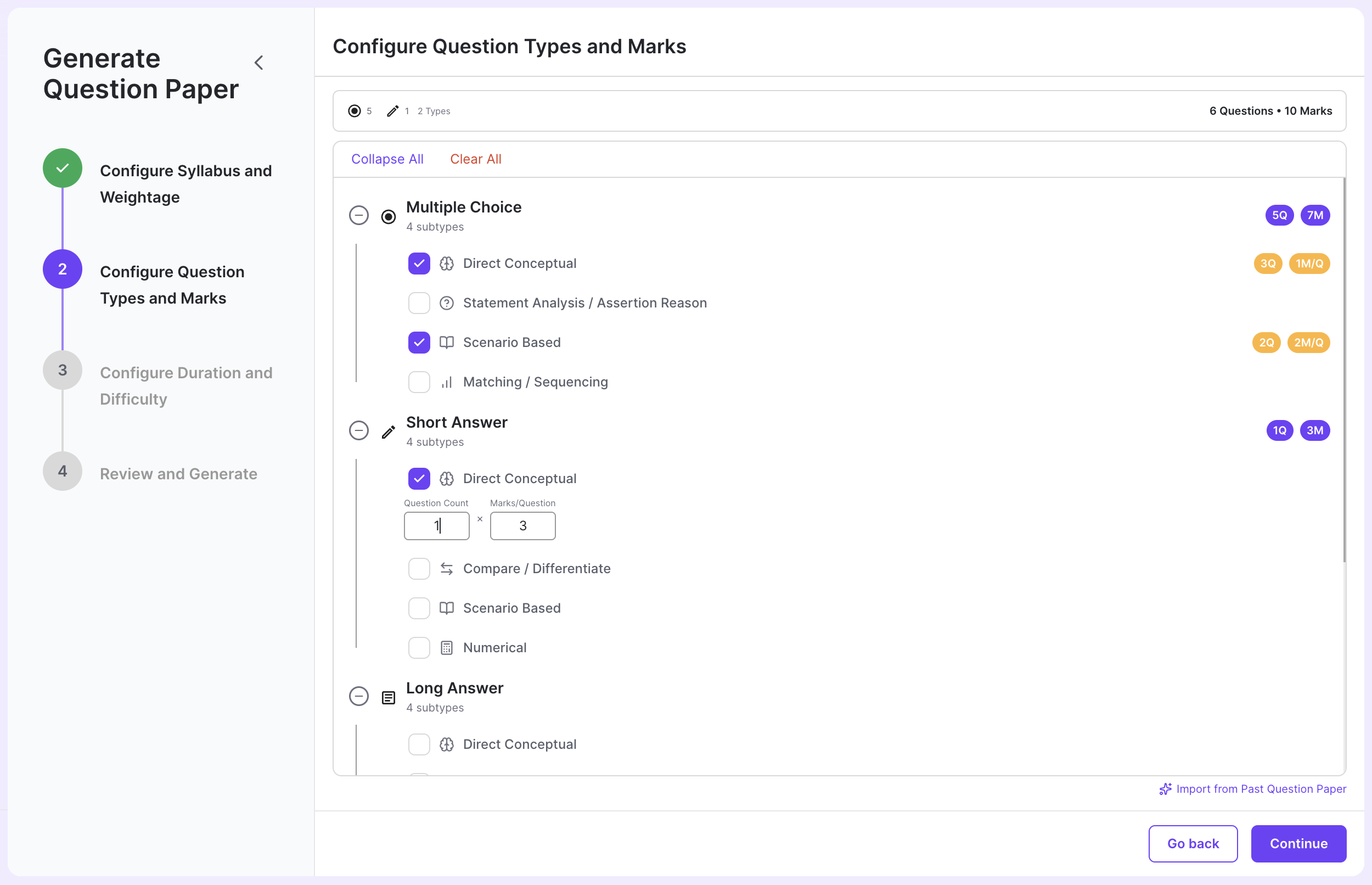 For detailed instructions on question type configuration, see:
 ***
## Step 7: Review Configuration & Generate
Review your configuration settings and click the generate button to create your question paper.
***
## Step 7: Review Configuration & Generate
Review your configuration settings and click the generate button to create your question paper.