> ## Documentation Index
> Fetch the complete documentation index at: https://docs.acadine.ai/llms.txt
> Use this file to discover all available pages before exploring further.
# Publish Results
> Publish annual and mid-term results for students to access via credentials
Acadine's result publishing system allows you to publish consolidated exam results (annual exams, mid-term exams, pre-boards, etc.) that students can access using unique credentials. Design your report cards exactly how you want them with complete creative freedom.
**Result Access Portal**: Published results are accessible at [results.acadine.ai](https://results.acadine.ai)
Students use their provided username and password to view their complete result marksheet.
## Overview
The result publishing workflow is simple and flexible:
1. **Prepare Excel file** - One file with all student data (only requirement: User ID column)
2. **Design DOCX template** - Create your report card design with placeholders for data
3. **Upload and publish** - Upload both files, configure optional QR code, and publish
4. **Activate credentials** - Bulk update student credentials so they can access results
Create a single Excel file with all student data. The only requirement is including a **User ID** column.
**Requirements:**
* Must include a **User ID** column (Acadine-generated student IDs)
* Can have any other columns in any order (Name, Class, Subjects, Marks, Grades, etc.)
* Column names can be anything you want
* One row per student (rows without User ID are ignored)
* If multiple sheets exist, only the first sheet will be used
**Example Excel Structure:**
| A | B | C | D | E | F | G | H | I | J |
| ----------- | ------------------ | --------- | ----------- | ----------- | ----------- | --------------- | ----------- | --------- | -------------- |
| **User ID** | **Name** | **Class** | **Section** | **Roll No** | **English** | **Mathematics** | **Science** | **Total** | **Percentage** |
| 38AcRWc | PRAGYASHREE MISHRA | 8A | DS | 5878 | 85 | 92 | 88 | 265 | 88.3 |
| 38AcRjK | SRISHTI KUMARI | 8A | Gargi | 6449 | 78 | 85 | 81 | 244 | 81.3 |
| 38Ac537 | RUMMAN KHAN | 8C | Ramakrishna | 5676 | 90 | 88 | 94 | 272 | 90.7 |
**Column letters (A, B, C...)** are how you'll reference data in your DOCX template. Keep track of which column contains which data.
You can include as many columns as you need - theory marks, practical marks, grades, attendance, remarks, etc. There are no restrictions on column structure.
Design your report card template exactly as you want it to appear. Use placeholders to reference data from your Excel file.
**Template Design:**
* Use complete creative freedom (formatting, tables, images, logos, colors, fonts)
* Reference Excel data using column letters: `{{A}}`, `{{B}}`, `{{AA}}`, `{{AB}}`, etc.
* Add `{{REPORT_QR_CODE}}` placeholder for QR code to detailed reports (optional)
* Add `{{r REPORT_LINK}}` placeholder for clickable hyperlink to detailed reports (optional)
* Include school branding, headers, footers, signatures as desired
**Placeholder Syntax:**
| Placeholder | Description | Example |
| -------------------- | --------------------------------------- | --------------------------------- |
| `{{A}}` | Single letter column | References column A (User ID) |
| `{{B}}` | Single letter column | References column B (Name) |
| `{{AA}}` | Multi-letter column | References column AA |
| `{{REPORT_QR_CODE}}` | QR code for detailed reports | Inserts QR code image (optional) |
| `{{r REPORT_LINK}}` | Clickable hyperlink to detailed reports | Inserts clickable link (optional) |
**How Placeholders Work:**
If Excel Column B contains "PRAGYASHREE MISHRA":
* Template: `Name: {{B}}`
* Result: `Name: PRAGYASHREE MISHRA`
* Column letters are **case-sensitive**: `{{A}}` and `{{a}}` are different
* For hyperlinks, use `{{r REPORT_LINK}}` (note the `r` prefix), not `{{REPORT_LINK}}`
* Ensure placeholder syntax is exact: `{{A}}` (correct) vs `{A}` or `((A))` (incorrect)
Navigate to the **Publish Results** screen in your admin dashboard and upload your files.
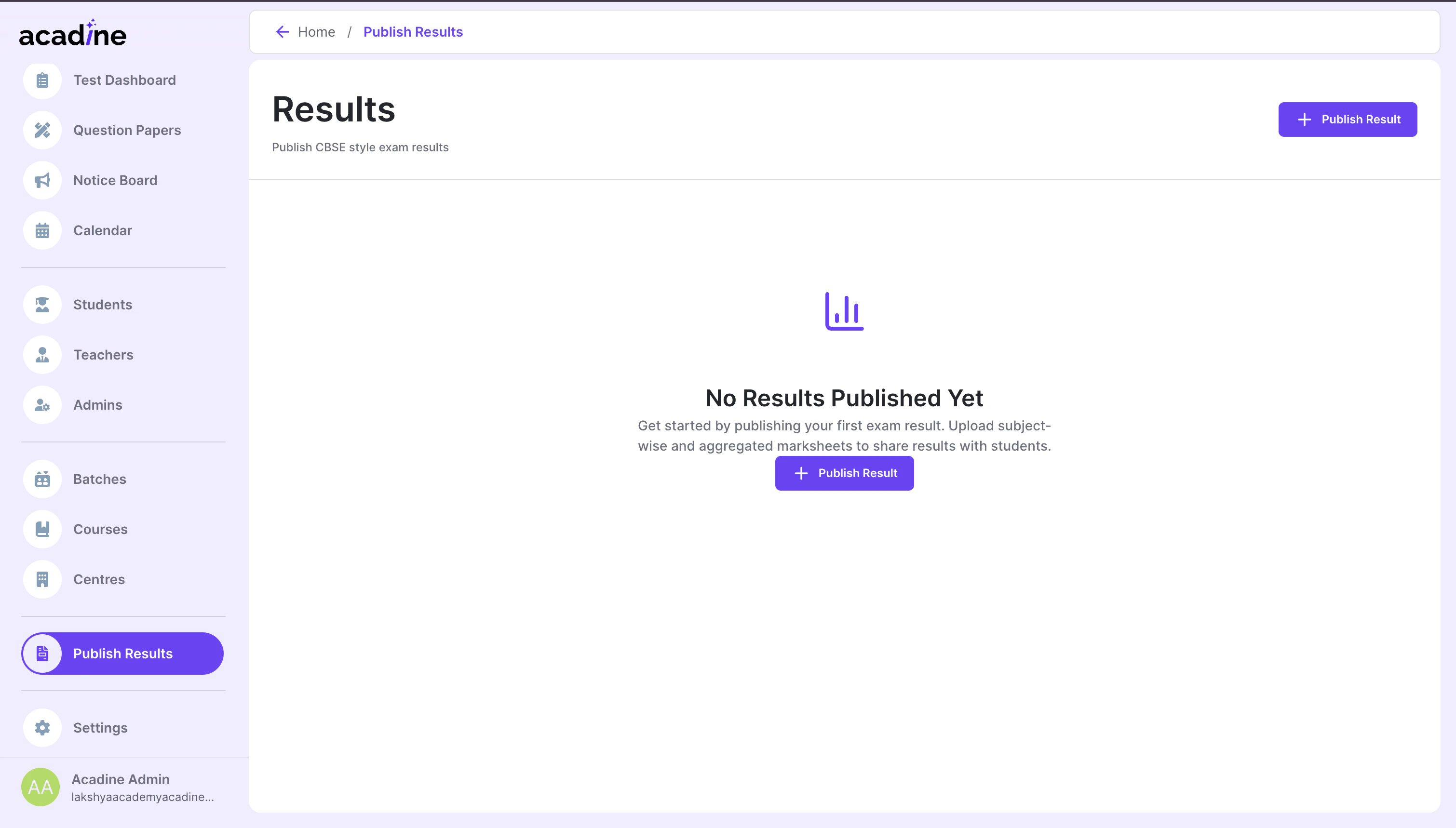 **Publishing Steps:**
1. **Enter exam name** (e.g., "Annual Exam 2026", "Pre-Board III 2026", "Mid-Term December 2025")
2. **Upload Excel file** - Select your prepared Excel file
3. **Upload DOCX template** - Select your report card template
4. **Select tests for detailed reports** (if using `{{REPORT_QR_CODE}}` or `{{r REPORT_LINK}}` placeholders):
* Choose test(s) that were evaluated through the Acadine platform
* Students can scan the QR code or click the link to view detailed test analysis
* Skip this if you don't have these placeholders in your template
5. **Review** the uploaded data
6. **Confirm and publish**
7. **Refresh the page** after a few seconds - status should change to "Published"
The exam name appears on the result marksheet, so choose a clear, descriptive name.
**Detailed Report Features**: Add `{{REPORT_QR_CODE}}` for QR codes or `{{r REPORT_LINK}}` for clickable hyperlinks. You'll select which tests to link during the publish step.
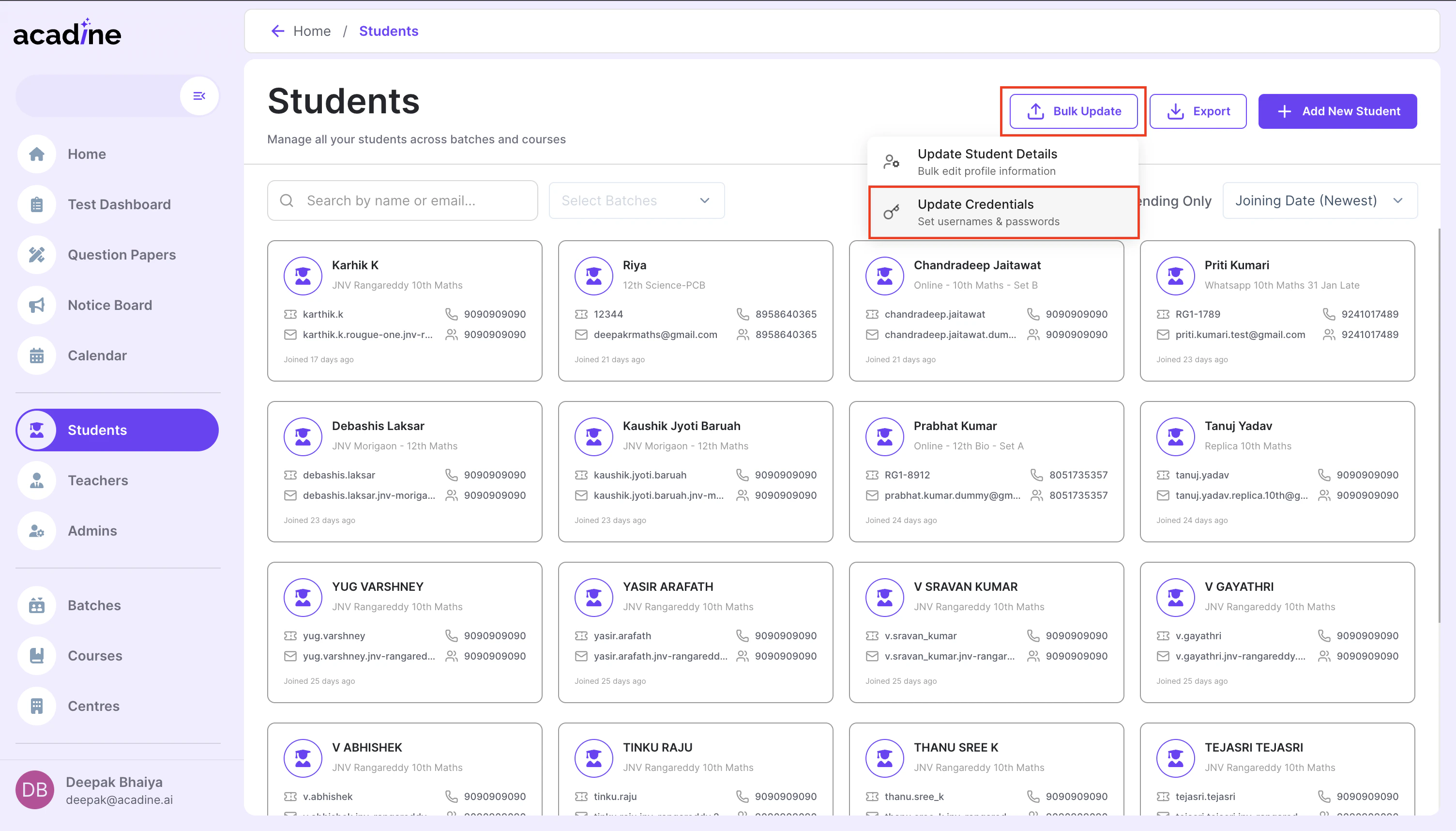
After publishing results, update student credentials so they can log in.
**Credential Setup:**
1. Go to the **Students** tab in your dashboard
2. Click **Bulk Update**
3. Select **Update Credentials**
4. Upload the credentials CSV file
5. Wait a few seconds for processing to complete
**Publishing Steps:**
1. **Enter exam name** (e.g., "Annual Exam 2026", "Pre-Board III 2026", "Mid-Term December 2025")
2. **Upload Excel file** - Select your prepared Excel file
3. **Upload DOCX template** - Select your report card template
4. **Select tests for detailed reports** (if using `{{REPORT_QR_CODE}}` or `{{r REPORT_LINK}}` placeholders):
* Choose test(s) that were evaluated through the Acadine platform
* Students can scan the QR code or click the link to view detailed test analysis
* Skip this if you don't have these placeholders in your template
5. **Review** the uploaded data
6. **Confirm and publish**
7. **Refresh the page** after a few seconds - status should change to "Published"
The exam name appears on the result marksheet, so choose a clear, descriptive name.
**Detailed Report Features**: Add `{{REPORT_QR_CODE}}` for QR codes or `{{r REPORT_LINK}}` for clickable hyperlinks. You'll select which tests to link during the publish step.
After publishing results, update student credentials so they can log in.
**Credential Setup:**
1. Go to the **Students** tab in your dashboard
2. Click **Bulk Update**
3. Select **Update Credentials**
4. Upload the credentials CSV file
5. Wait a few seconds for processing to complete
 **Credentials CSV Format:**
| User ID | Username | Password |
| ------- | -------- | ------------ |
| 38AcRWc | 38AcRWc | 38AcRWc-pass |
| 38AcRjK | 38AcRjK | 38AcRjK-pass |
| 38Ac537 | 38Ac537 | 38Ac537-pass |
**Required columns:**
* `User ID` - Must match User ID from Excel file
* `Username` - Login username (must be globally unique across all students in Acadine)
* `Password` - Login password
**Recommended approach**: Use the User ID as the username for simplicity. This makes it easier for students to remember their credentials.
Usernames must be **globally unique** across all students in the Acadine platform.
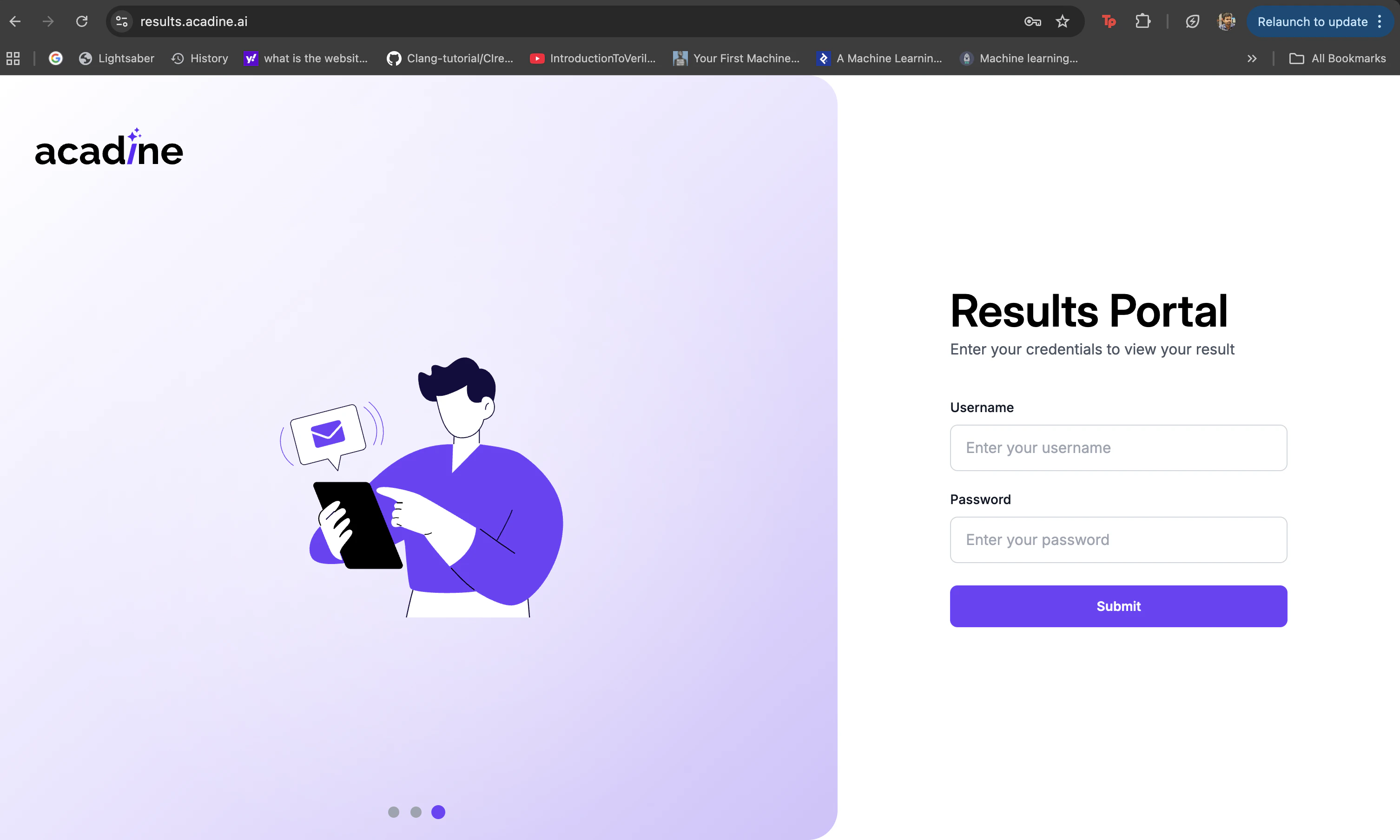
After credentials are updated, students can immediately access their results at [results.acadine.ai](https://results.acadine.ai)
Students can now view their results:
1. Visit [results.acadine.ai](https://results.acadine.ai)
2. Enter their **username** and **password**
3. View their complete result marksheet with all data from your template
**Credentials CSV Format:**
| User ID | Username | Password |
| ------- | -------- | ------------ |
| 38AcRWc | 38AcRWc | 38AcRWc-pass |
| 38AcRjK | 38AcRjK | 38AcRjK-pass |
| 38Ac537 | 38Ac537 | 38Ac537-pass |
**Required columns:**
* `User ID` - Must match User ID from Excel file
* `Username` - Login username (must be globally unique across all students in Acadine)
* `Password` - Login password
**Recommended approach**: Use the User ID as the username for simplicity. This makes it easier for students to remember their credentials.
Usernames must be **globally unique** across all students in the Acadine platform.
After credentials are updated, students can immediately access their results at [results.acadine.ai](https://results.acadine.ai)
Students can now view their results:
1. Visit [results.acadine.ai](https://results.acadine.ai)
2. Enter their **username** and **password**
3. View their complete result marksheet with all data from your template
 Share the result portal URL and credential information with students via your regular communication channels (email, SMS, notice board, etc.).
## Understanding Column References
### How Excel Columns Map to Placeholders
Excel columns are labeled with letters: A, B, C... Z, AA, AB... AZ, BA, BB... etc.
**Single Letter Columns (A-Z):**
* Column A → `{{A}}`
* Column B → `{{B}}`
* Column Z → `{{Z}}`
**Double Letter Columns (AA-ZZ):**
* Column AA → `{{AA}}`
* Column AB → `{{AB}}`
* Column AZ → `{{AZ}}`
* Column BA → `{{BA}}`
**Example Mapping:**
| Excel | Placeholder | Sample Data | Template Usage |
| --------- | ----------- | ------------------ | ---------------------- |
| Column A | `{{A}}` | 38AcRWc | User ID: `{{A}}` |
| Column B | `{{B}}` | PRAGYASHREE MISHRA | Name: `{{B}}` |
| Column C | `{{C}}` | 8A | Class: `{{C}}` |
| Column F | `{{F}}` | 85 | English: `{{F}}` marks |
| Column AA | `{{AA}}` | Excellent | Remarks: `{{AA}}` |
You can reference **any column** in your Excel file. There's no limit to the number of columns you can use.
## Best Practices
* Ensure **User ID** column exists and is correctly populated
* Use clear, descriptive column headers for your reference
* Verify data types are consistent in each column (numbers as numbers, text as text)
* One row per student (duplicate User IDs may cause issues)
* Remove any completely empty rows
* If using multiple sheets, ensure your data is on the **first sheet**
* Keep a backup copy of your Excel file
* Use column letters for placeholders: `{{A}}`, `{{B}}`, `{{AA}}`
* Test template with sample data before publishing to all students
* Include school logo, header, and branding as desired
* Use tables for structured data presentation (marks, grades, subjects)
* For QR codes, ensure `{{REPORT_QR_CODE}}` has adequate space
* Keep a backup copy of your template
* Verify all placeholder references match your Excel column structure
* Use User IDs as usernames for consistency
* Create strong but memorable passwords
* Keep a backup copy of the credentials CSV
* Verify credentials are uploaded before announcing results
* Consider using a pattern for passwords (e.g., UserID-pass)
* Review uploaded data carefully before publishing
* Cross-check Excel data with template placeholders
* Verify all column references are correct (A, B, C... match intended data)
* Test with sample credentials before full rollout
* Keep source Excel and DOCX files for reference
* Use clear, descriptive exam names
* Publish results during off-peak hours if expecting high traffic
* Announce result availability after credential verification
* Monitor the system after publishing for any issues
* Have support ready for credential-related queries
## File Requirements Reference
### Excel File
| Requirement | Description |
| --------------------- | ----------------------------------------------------------------------------- |
| **Required Column** | **User ID** - Must match Acadine-generated student IDs |
| **Other Columns** | Any columns you need (Name, Class, Subjects, Marks, Grades, Attendance, etc.) |
| **Column Names** | Can be anything - you'll reference them by letter (A, B, C...) in template |
| **Data Format** | One row per student |
| **Sheet Requirement** | Single sheet (or first sheet will be used if multiple exist) |
| **File Format** | .xlsx or .xls |
### DOCX Template
| Element | Description |
| -------------------- | ---------------------------------------------------------------------------- |
| **Placeholders** | Use `{{LETTER}}` format to reference Excel columns |
| **Column Reference** | Single letters: `{{A}}`, `{{B}}` / Multi-letter: `{{AA}}`, `{{AB}}` |
| **QR Code** | `{{REPORT_QR_CODE}}` - Optional placeholder for detailed report QR code |
| **Report Link** | `{{r REPORT_LINK}}` - Optional placeholder for clickable hyperlink |
| **Design Freedom** | Complete creative control - formatting, tables, images, logos, colors, fonts |
| **File Format** | .docx |
### Credentials CSV
| Column | Required | Description |
| ------------ | -------- | ---------------------------------------- |
| **User ID** | Yes | Must match User ID in Excel file |
| **Username** | Yes | Login username (must be globally unique) |
| **Password** | Yes | Login password |
## Troubleshooting
* Refresh the page after 10-15 seconds
* Check if status shows "Published"
* Verify both Excel and DOCX files were uploaded correctly
* Check for any error messages in the upload process
* Ensure Excel file contains User ID column
* Verify credentials were uploaded after publishing results
* Check that username is correct (case-sensitive)
* Ensure User ID in credentials CSV matches published results
* Confirm username is unique across all students in Acadine
* Verify column letters match Excel columns (A, B, C... AA, AB...)
* Check for typos in placeholder syntax: `{{A}}` not `{A}` or `((A)}`
* Ensure Excel file has data in referenced columns
* Column letters are **case-sensitive**: use uppercase `{{A}}` not `{{a}}`
* Verify Excel data doesn't have extra spaces or special characters
* Verify Excel User IDs match Acadine-generated User IDs
* Check that referenced columns contain expected data
* Ensure DOCX placeholders use correct column letters
* Review Excel file for empty cells or formatting issues
* Check if data is on the first sheet (if multiple sheets exist)
* Verify template contains `{{REPORT_QR_CODE}}` or `{{r REPORT_LINK}}` placeholder
* Check that you selected tests during the publish step
* For hyperlinks, ensure you used `{{r REPORT_LINK}}` (with `r` prefix), not `{{REPORT_LINK}}`
* For QR codes, leave adequate space around the placeholder in template
***
Need help with result publishing? Contact us at [support@acadine.ai](mailto:support@acadine.ai)
Share the result portal URL and credential information with students via your regular communication channels (email, SMS, notice board, etc.).
## Understanding Column References
### How Excel Columns Map to Placeholders
Excel columns are labeled with letters: A, B, C... Z, AA, AB... AZ, BA, BB... etc.
**Single Letter Columns (A-Z):**
* Column A → `{{A}}`
* Column B → `{{B}}`
* Column Z → `{{Z}}`
**Double Letter Columns (AA-ZZ):**
* Column AA → `{{AA}}`
* Column AB → `{{AB}}`
* Column AZ → `{{AZ}}`
* Column BA → `{{BA}}`
**Example Mapping:**
| Excel | Placeholder | Sample Data | Template Usage |
| --------- | ----------- | ------------------ | ---------------------- |
| Column A | `{{A}}` | 38AcRWc | User ID: `{{A}}` |
| Column B | `{{B}}` | PRAGYASHREE MISHRA | Name: `{{B}}` |
| Column C | `{{C}}` | 8A | Class: `{{C}}` |
| Column F | `{{F}}` | 85 | English: `{{F}}` marks |
| Column AA | `{{AA}}` | Excellent | Remarks: `{{AA}}` |
You can reference **any column** in your Excel file. There's no limit to the number of columns you can use.
## Best Practices
* Ensure **User ID** column exists and is correctly populated
* Use clear, descriptive column headers for your reference
* Verify data types are consistent in each column (numbers as numbers, text as text)
* One row per student (duplicate User IDs may cause issues)
* Remove any completely empty rows
* If using multiple sheets, ensure your data is on the **first sheet**
* Keep a backup copy of your Excel file
* Use column letters for placeholders: `{{A}}`, `{{B}}`, `{{AA}}`
* Test template with sample data before publishing to all students
* Include school logo, header, and branding as desired
* Use tables for structured data presentation (marks, grades, subjects)
* For QR codes, ensure `{{REPORT_QR_CODE}}` has adequate space
* Keep a backup copy of your template
* Verify all placeholder references match your Excel column structure
* Use User IDs as usernames for consistency
* Create strong but memorable passwords
* Keep a backup copy of the credentials CSV
* Verify credentials are uploaded before announcing results
* Consider using a pattern for passwords (e.g., UserID-pass)
* Review uploaded data carefully before publishing
* Cross-check Excel data with template placeholders
* Verify all column references are correct (A, B, C... match intended data)
* Test with sample credentials before full rollout
* Keep source Excel and DOCX files for reference
* Use clear, descriptive exam names
* Publish results during off-peak hours if expecting high traffic
* Announce result availability after credential verification
* Monitor the system after publishing for any issues
* Have support ready for credential-related queries
## File Requirements Reference
### Excel File
| Requirement | Description |
| --------------------- | ----------------------------------------------------------------------------- |
| **Required Column** | **User ID** - Must match Acadine-generated student IDs |
| **Other Columns** | Any columns you need (Name, Class, Subjects, Marks, Grades, Attendance, etc.) |
| **Column Names** | Can be anything - you'll reference them by letter (A, B, C...) in template |
| **Data Format** | One row per student |
| **Sheet Requirement** | Single sheet (or first sheet will be used if multiple exist) |
| **File Format** | .xlsx or .xls |
### DOCX Template
| Element | Description |
| -------------------- | ---------------------------------------------------------------------------- |
| **Placeholders** | Use `{{LETTER}}` format to reference Excel columns |
| **Column Reference** | Single letters: `{{A}}`, `{{B}}` / Multi-letter: `{{AA}}`, `{{AB}}` |
| **QR Code** | `{{REPORT_QR_CODE}}` - Optional placeholder for detailed report QR code |
| **Report Link** | `{{r REPORT_LINK}}` - Optional placeholder for clickable hyperlink |
| **Design Freedom** | Complete creative control - formatting, tables, images, logos, colors, fonts |
| **File Format** | .docx |
### Credentials CSV
| Column | Required | Description |
| ------------ | -------- | ---------------------------------------- |
| **User ID** | Yes | Must match User ID in Excel file |
| **Username** | Yes | Login username (must be globally unique) |
| **Password** | Yes | Login password |
## Troubleshooting
* Refresh the page after 10-15 seconds
* Check if status shows "Published"
* Verify both Excel and DOCX files were uploaded correctly
* Check for any error messages in the upload process
* Ensure Excel file contains User ID column
* Verify credentials were uploaded after publishing results
* Check that username is correct (case-sensitive)
* Ensure User ID in credentials CSV matches published results
* Confirm username is unique across all students in Acadine
* Verify column letters match Excel columns (A, B, C... AA, AB...)
* Check for typos in placeholder syntax: `{{A}}` not `{A}` or `((A)}`
* Ensure Excel file has data in referenced columns
* Column letters are **case-sensitive**: use uppercase `{{A}}` not `{{a}}`
* Verify Excel data doesn't have extra spaces or special characters
* Verify Excel User IDs match Acadine-generated User IDs
* Check that referenced columns contain expected data
* Ensure DOCX placeholders use correct column letters
* Review Excel file for empty cells or formatting issues
* Check if data is on the first sheet (if multiple sheets exist)
* Verify template contains `{{REPORT_QR_CODE}}` or `{{r REPORT_LINK}}` placeholder
* Check that you selected tests during the publish step
* For hyperlinks, ensure you used `{{r REPORT_LINK}}` (with `r` prefix), not `{{REPORT_LINK}}`
* For QR codes, leave adequate space around the placeholder in template
***
Need help with result publishing? Contact us at [support@acadine.ai](mailto:support@acadine.ai)