
Overview
Configure the types of questions, their subtypes, and marks distribution for your question paper. This determines the structure and scoring of your assessment.Auto-Import: If you imported syllabus configuration from a previous question paper, the question types and marks configuration from that paper is automatically imported as well. You can override it by manually configuring your own or importing from another question paper.
Two Ways to Configure
You can configure question types and marks in two ways:- Manual Configuration - Select question subtypes and specify question count and marks
- Import from Previous Question Paper - Reuse configuration from a past question paper and edit if needed
Method 1: Manual Configuration
Step 1: Browse Question Types and Subtypes
You’ll see all supported question types organized into categories:- Multiple Choice - Direct Conceptual, Statement Analysis/Assertion Reason, Scenario Based, Matching/Sequencing
- Short Answer - Direct Conceptual, Compare/Differentiate, Scenario Based, Numerical
- Long Answer - Direct Conceptual, Compare/Differentiate, Scenario Based, Numerical
- Very Long Answer - Direct Conceptual, Compare/Differentiate, Scenario Based, Numerical
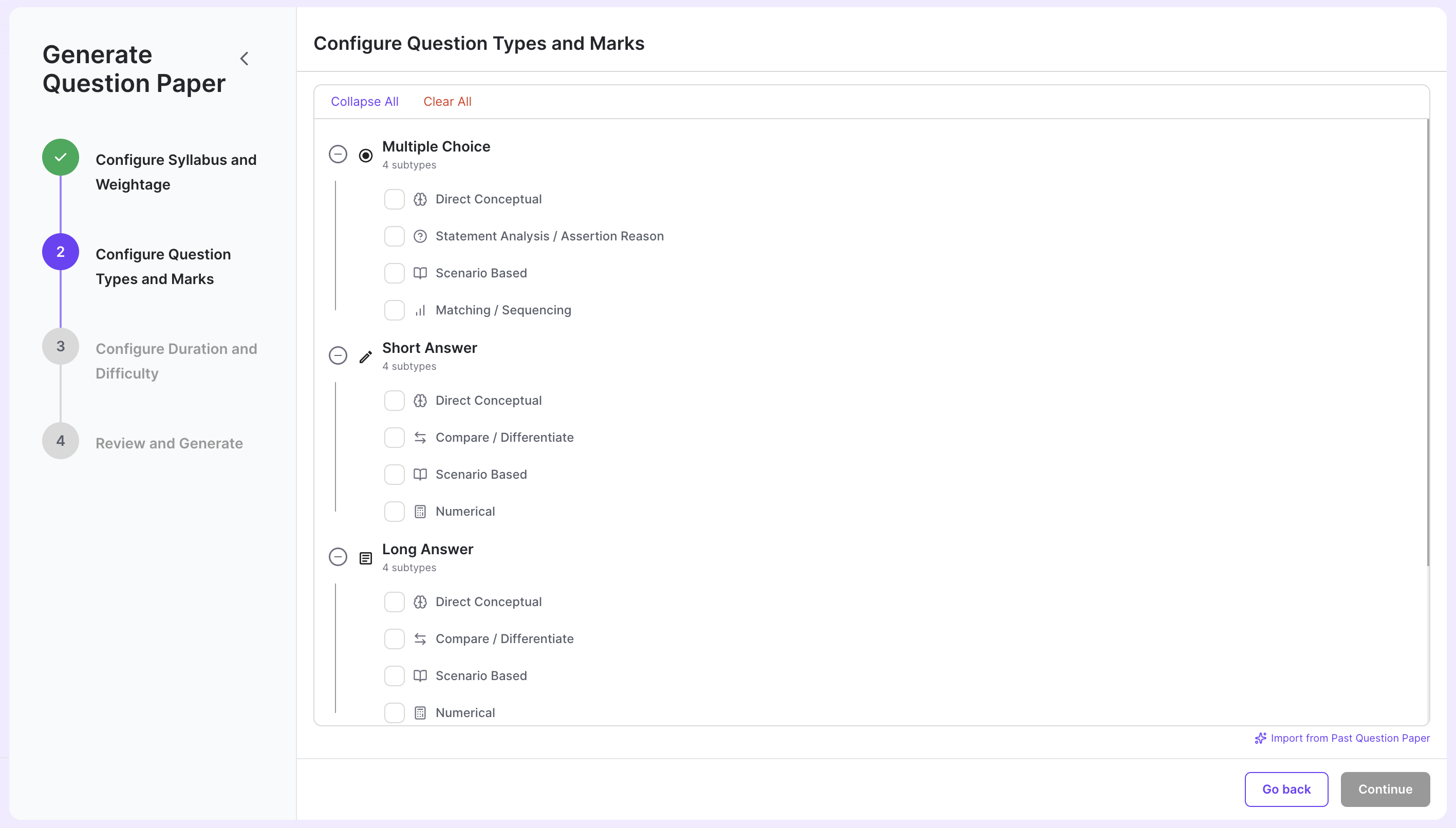
Course & Subject Specific: The available question types and subtypes may vary across different courses and subjects. We keep this comprehensive and updated with current exam patterns.
- Collapse All: Collapse all question types to see only main categories
- Clear All: Remove all configured question types and marks
Step 2: Select Question Subtypes
Click on a subtype checkbox to include it in your question paper. When you select a subtype, a configuration form appears immediately.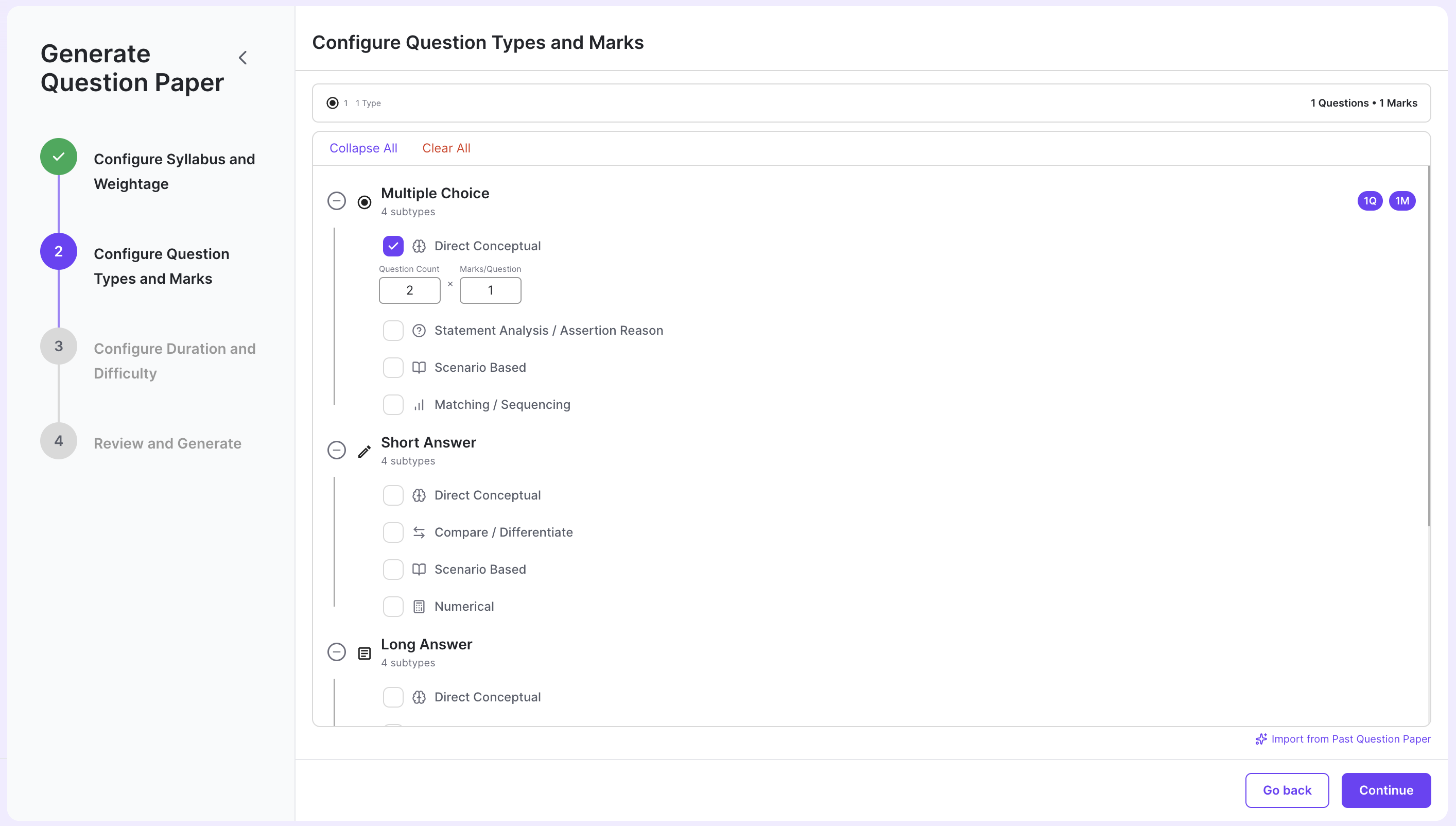
Step 3: Configure Question Count and Marks
For each selected subtype, you need to specify:- Question Count: Total number of questions of this subtype
- Marks/Question: Marks allocated per question
Equal Marks: All questions of the same type and subtype will have equal marks. For example, if you set 3 marks for “Multiple Choice > Direct Conceptual”, all Direct Conceptual MCQs will carry 3 marks each.
Track Your Progress
The header at the top shows a real-time summary of your configuration:- Total Questions: How many questions you’ve configured across all types
- Total Marks: Sum of all marks (Questions × Marks per Question)
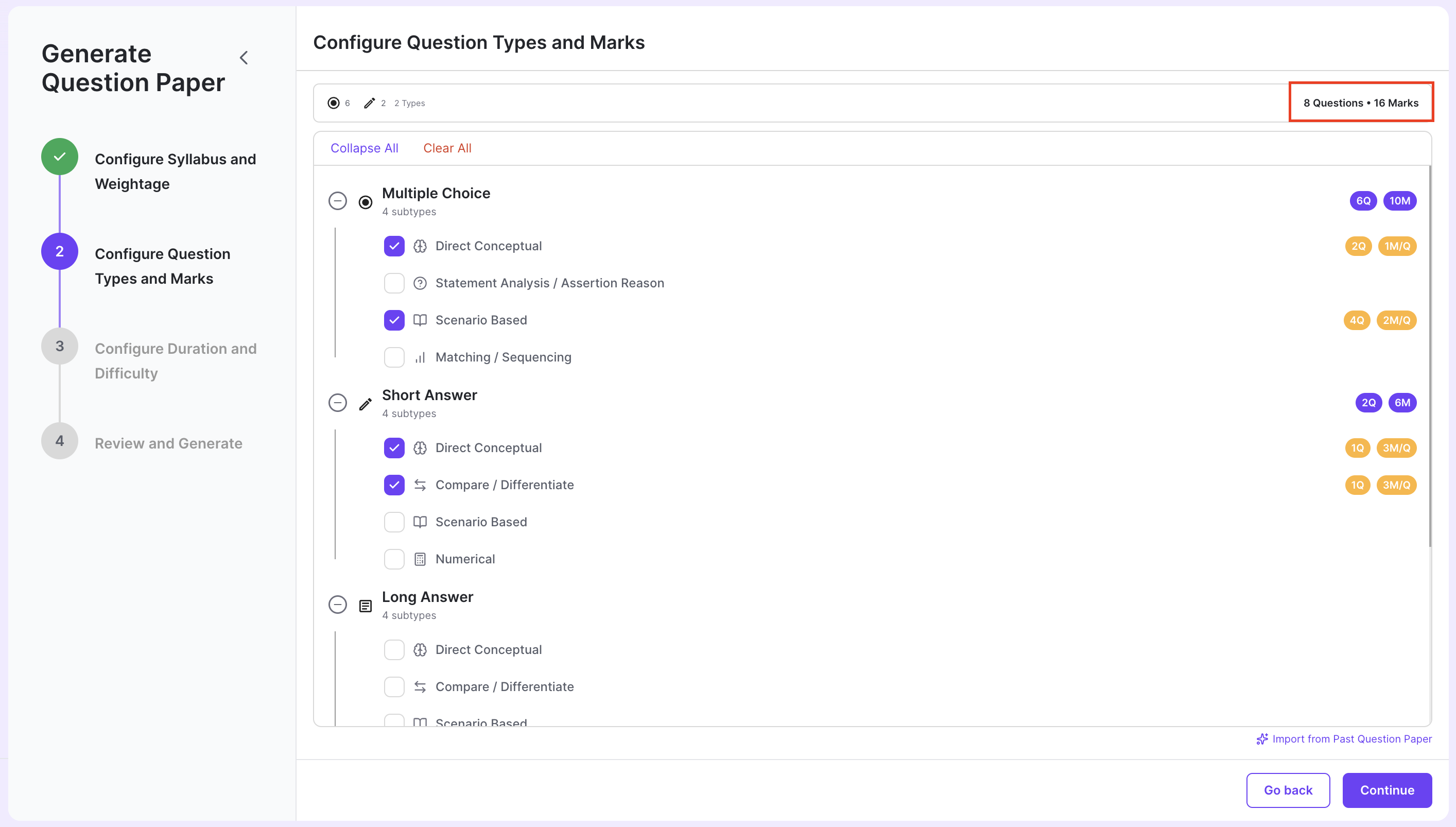
Method 2: Import from Previous Question Paper
Step 1: Click Import Button
Click the “Import from Past Question Paper” button located at the bottom right of the screen.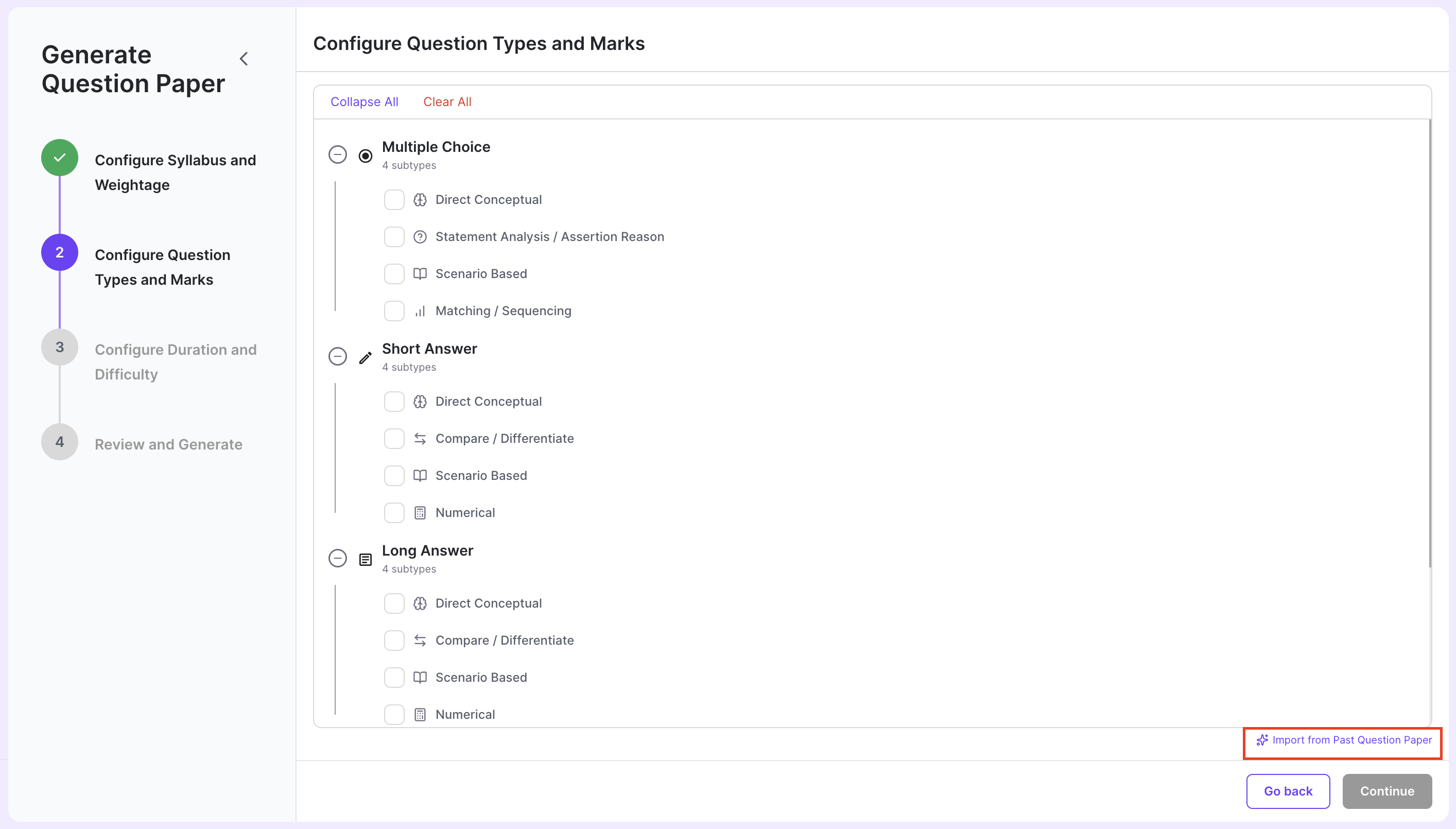
Step 2: Select Question Paper
Choose a previously created question paper from the list. After selecting, click the “Import & Continue” button to import the question type and marks configuration from that paper.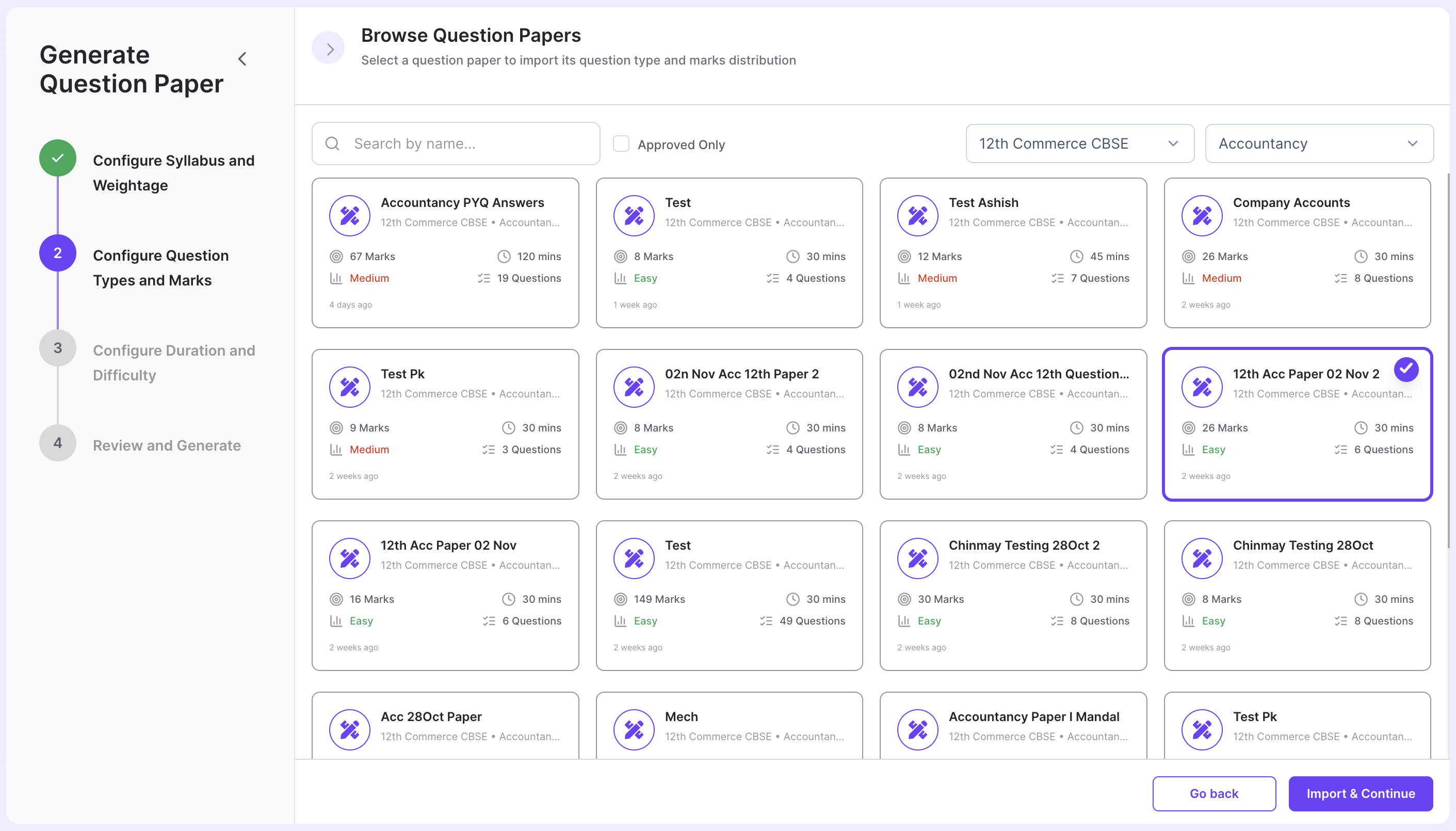
Step 3: Edit if Needed
Once imported, you can edit the configuration just like in manual mode:- Add or remove question subtypes
- Adjust question counts
- Change marks per question
What’s Next?
After configuring question types and marks, click “Continue” to proceed to the next step where you’ll configure difficulty level and test duration.Need Help?
Have questions or need assistance? Reach out to us at support@acadine.ai.