
Introduction
Generate comprehensive question papers in minutes using Acadine’s AI-powered tools. Choose between two generation modes based on your needs - get a complete paper instantly or build it step-by-step with AI assistance.Permission Required: Only teachers and admins can generate question papers.
Generation Modes
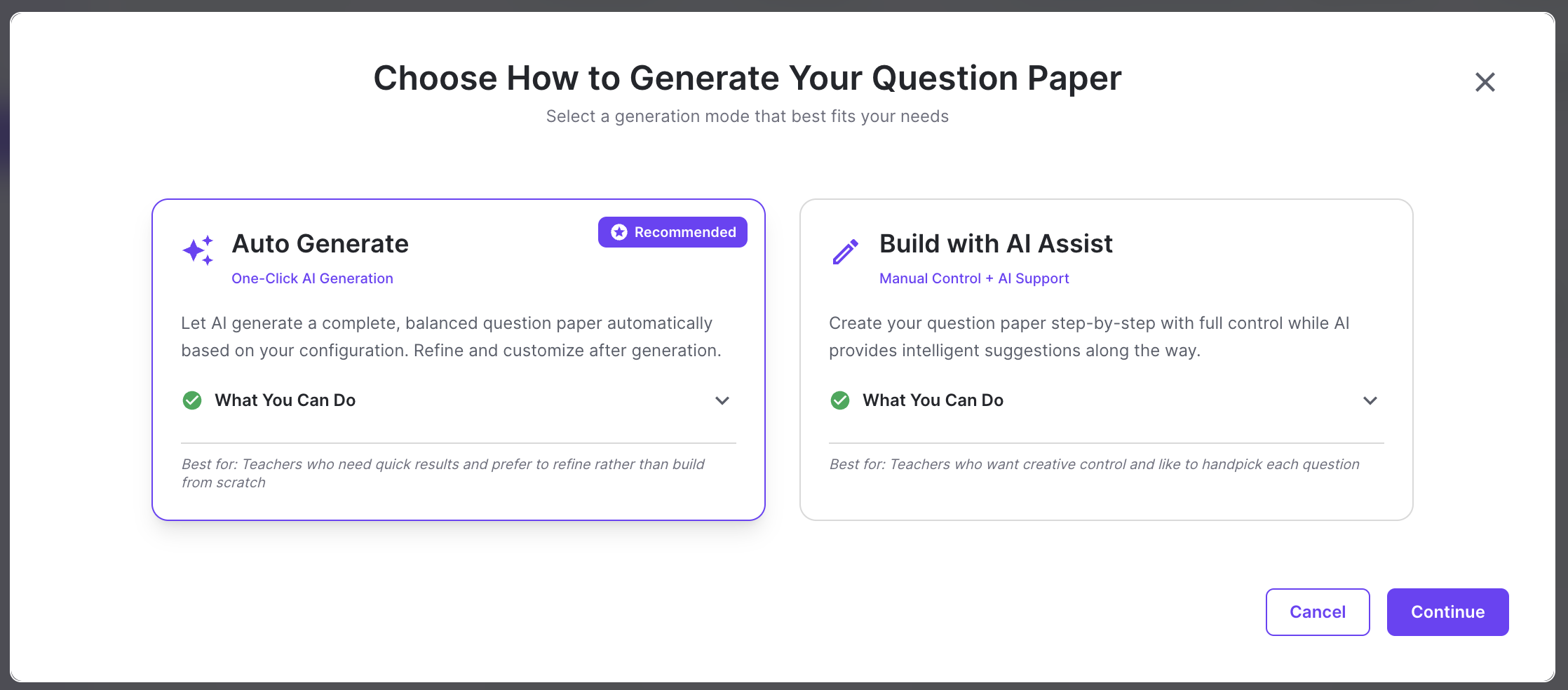
Acadine offers two ways to create question papers:- Auto Generate: AI creates a complete, balanced question paper automatically based on your configuration. Perfect for quick test creation.
- Build with AI: Create your paper step-by-step with full control while AI provides intelligent suggestions. Ideal when you want to handpick each question.
Step 1: Go to Question Papers Screen
Navigate to the Question Papers section from your dashboard.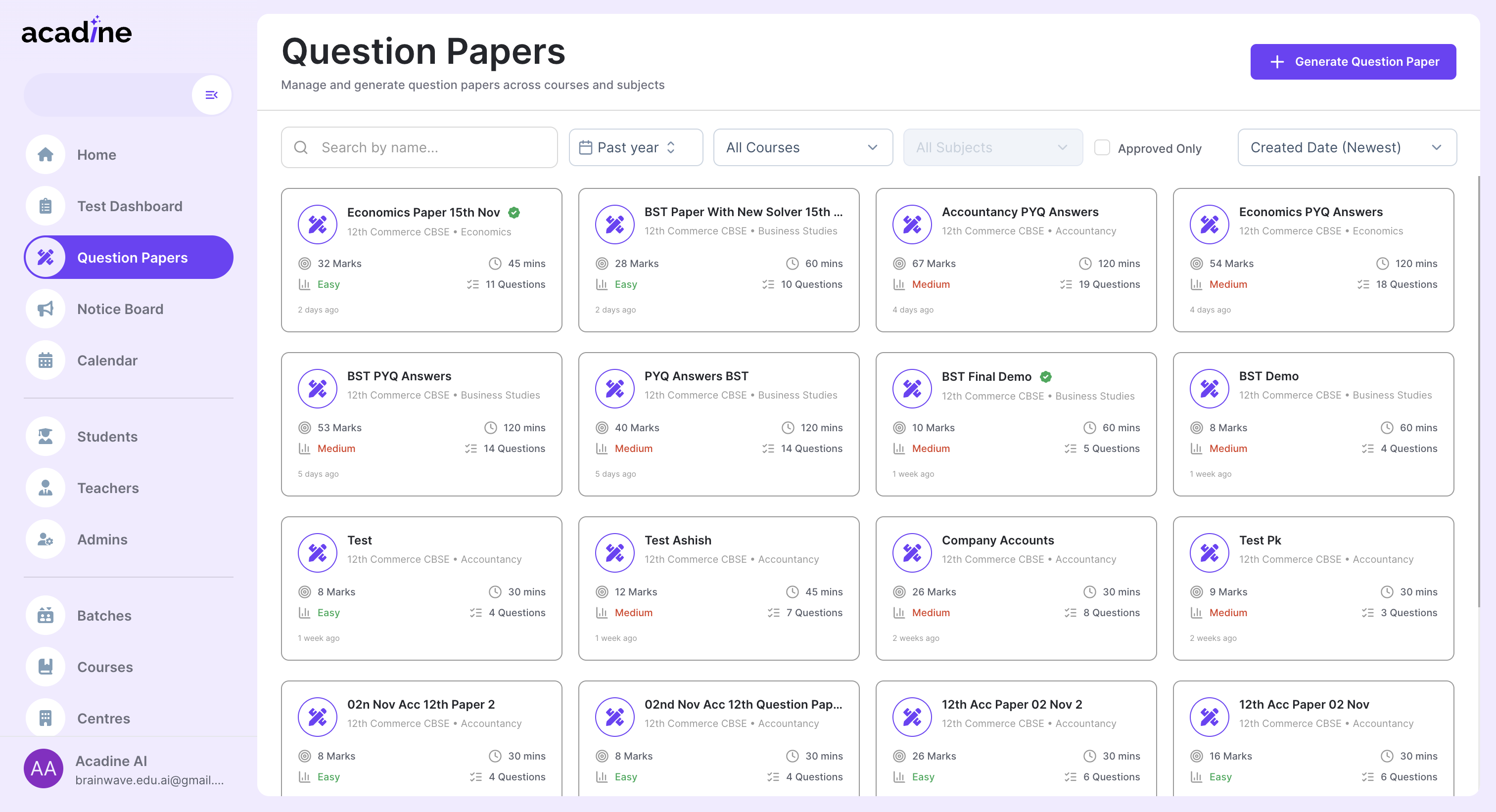
Step 2: Click Generate Question Paper Button
Click the Generate Question Paper button from the header to start creating a new question paper.Step 3: Choose Your Generation Mode
Select the generation mode that best fits your needs:Auto Generate
One-Click AI GenerationLet AI generate a complete, balanced question paper automatically based on your configuration. Review and refine after generation.Best for: Teachers who need quick results and prefer to refine rather than build from scratch.
Build with AI
Manual Control + AI SupportCreate your question paper step-by-step with full control. AI provides intelligent suggestions as you build.Best for: Teachers who want creative control and like to handpick each question.
Step 4: Configure Syllabus & Weightage
Define which chapters and topics should be covered in your question paper and their weightage distribution.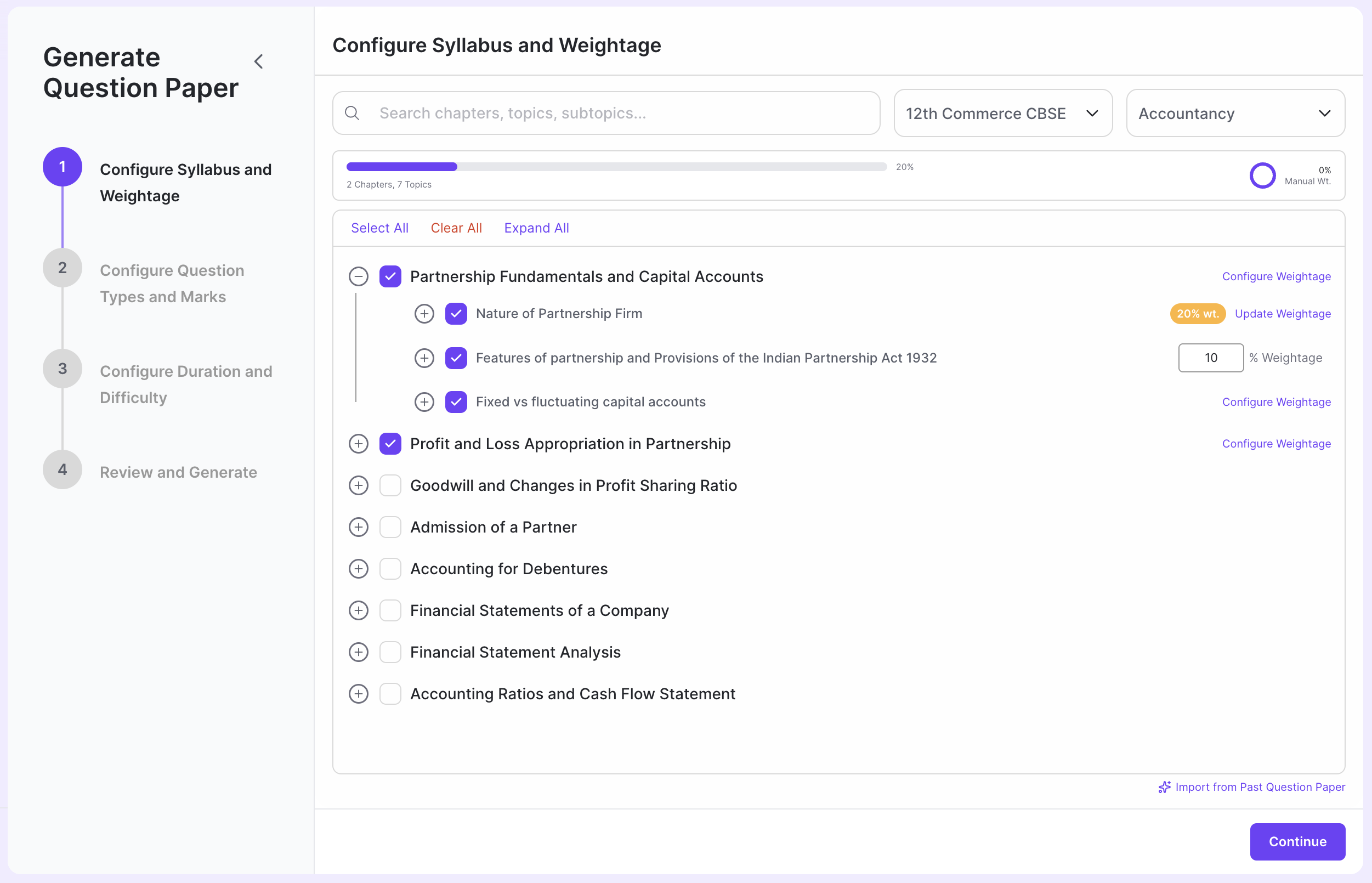
Optional for Build with AI Mode: This configuration is optional if you choose Build with AI mode, but it helps AI provide better suggestions.
Configure Syllabus & Weightage
Learn how to set up syllabus coverage and weightage distribution
Step 5: Configure Question Types & Marks
Set up the types of questions (MCQ, Short Answer, Long Answer, Numerical, etc.) and their marks distribution.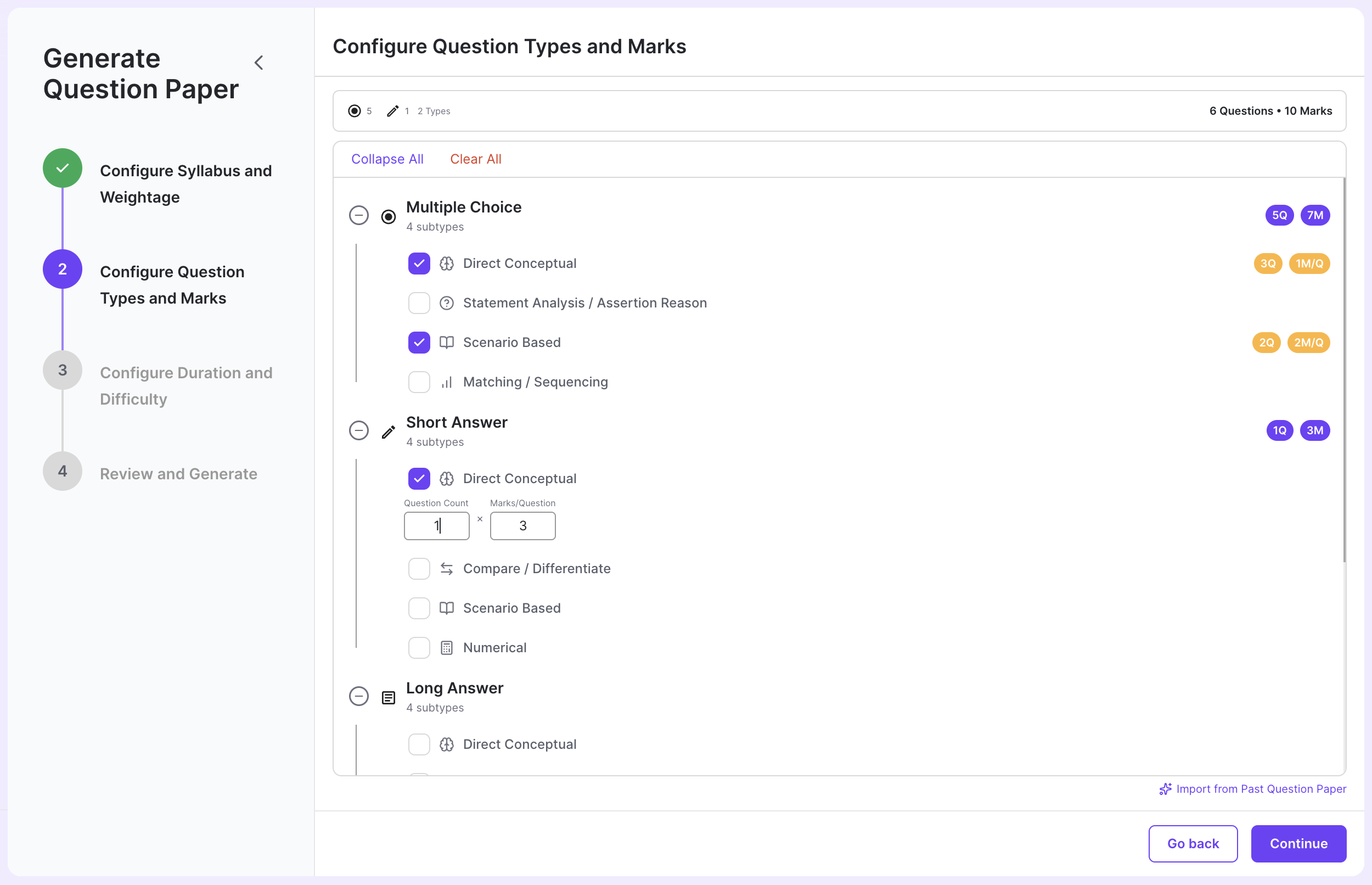
Configure Question Types & Marks
Learn how to configure question types, subtypes, and marks distribution
Step 6: Configure Difficulty Level and Duration
Set the difficulty level for your question paper and specify the test duration.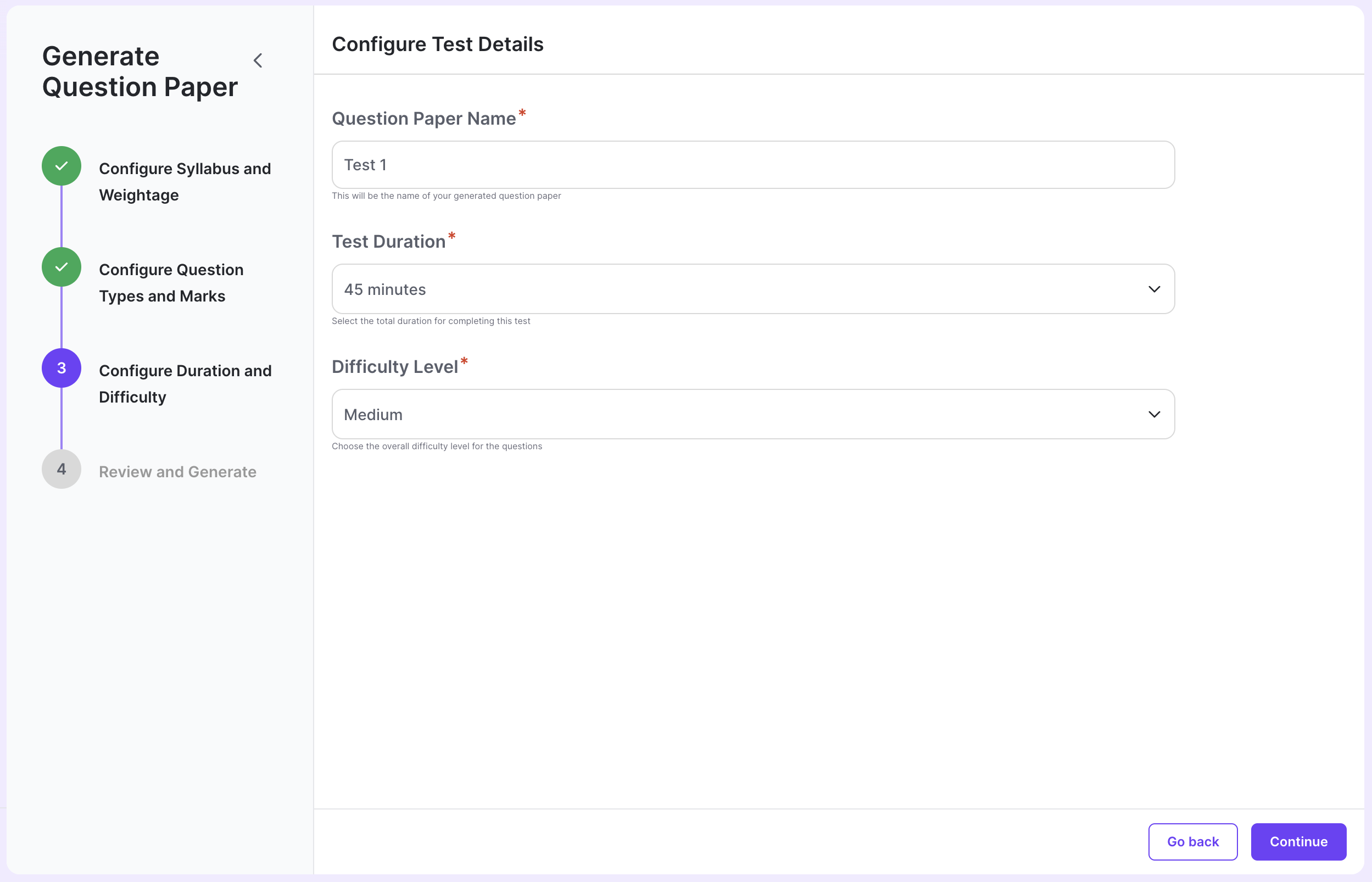
Step 7: Review Configuration & Generate
Review your configuration settings and click the generate button to create your question paper.Different Experiences:
- Auto Generate Mode: You’ll see real-time updates as AI creates your complete question paper automatically.
- Build with AI Mode: You’ll get a clean editor to build your question paper from scratch with AI suggestions.
What’s Next?
Once your question paper is generated, you can customize it further using these features:Edit Question
Modify question text, options, or answers
Replace Question
Swap questions from the question bank
Add New Question
Insert custom questions
Add New Section
Organize with new sections
Reorder Questions
Change question sequence
View PDF
Preview the question paper
Download Question Paper
Download for printing
Add Comments
Collaborate with notes
Approve
Lock and approve for scheduling
Need Help?
Have questions or need assistance? Reach out to us at support@acadine.ai.